
Software
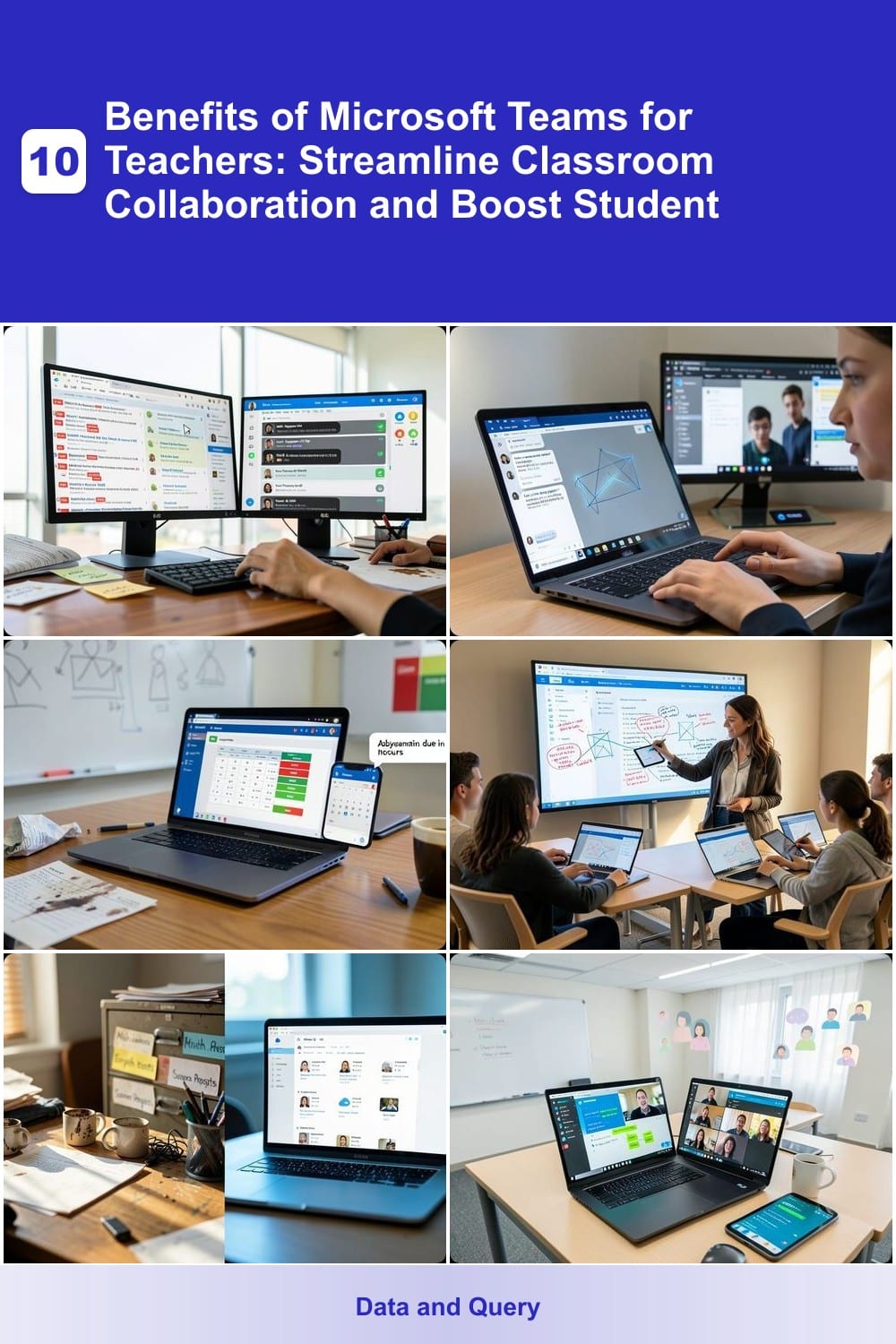
Microsoft Teams isn’t just for business—it’s a game-changer for educators. Discover how this powerful tool can transform your classroom workflow, enhance student collaboration, and create seamless communication channels that save time and boost engagement.
Seamless classroom communication hub
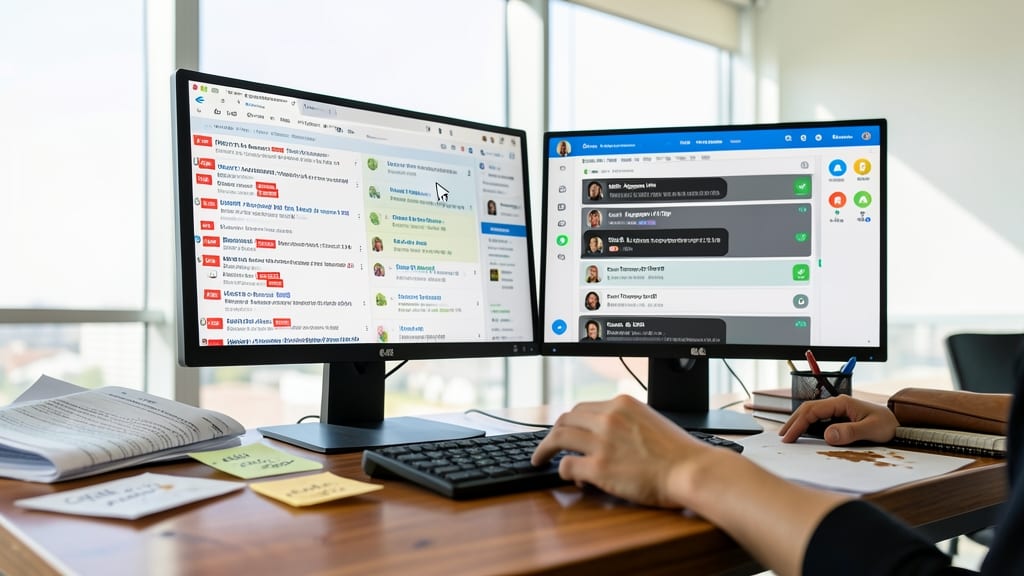
Say goodbye to the endless email threads where important announcements get buried under replies and spam. Microsoft Teams’ classroom communication hub replaces the chaos with dedicated channels for each subject or grade, where every update—from test reminders to last-minute schedule changes—lands in one organized spot.
With @mentions to tag specific students or parents, announcement tabs pinned at the top of chats, and automatic notifications, you ensure no one misses critical info. The file-sharing feature lets you attach permission slips, syllabi, or emergency contacts directly to messages, while read receipts confirm students have seen your updates. Best of all, two-way communication means parents and students can ask questions without clogging your inbox.
This is the perfect solution for teachers drowning in email or juggling multiple classes—especially those who want to reduce miscommunication and save hours weekly on follow-ups. 💡
Real-time student-teacher collaboration
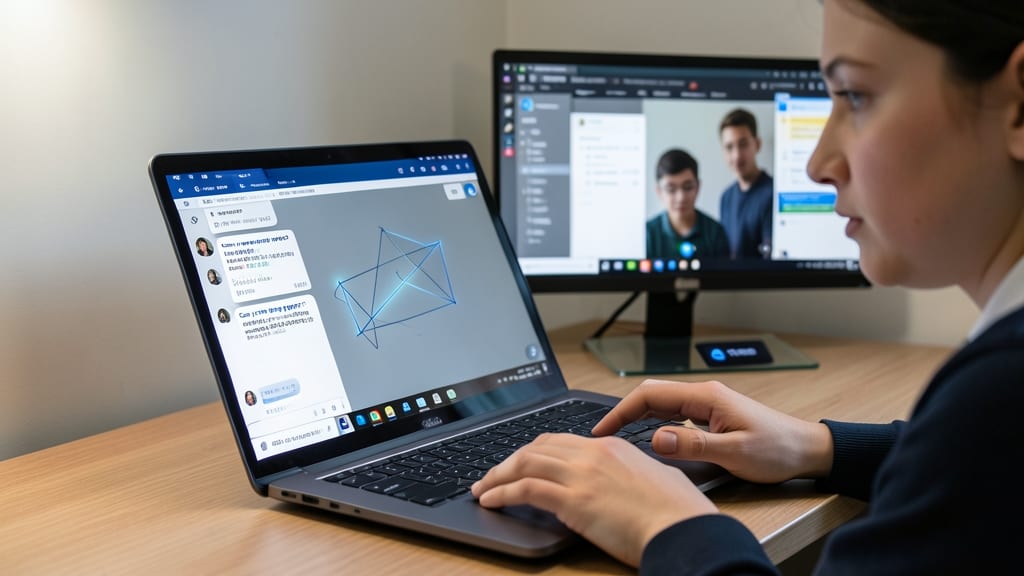
Struggling to keep up with students who need help outside of scheduled class time? Microsoft Teams’ real-time collaboration tools turn impromptu questions into instant solutions—whether through 1:1 video calls or quick chat messages. The platform’s screen-sharing and whiteboard features let you walk students through problems visually, while persistent chat history ensures no question gets lost in the shuffle.
With HD video quality and low-latency audio, even shy students feel comfortable asking questions during virtual office hours. The integrated scheduling tool lets you book one-on-one sessions directly from your calendar, and file-sharing in chats means you can send reference materials instantly. Plus, translation tools break language barriers for multilingual classrooms.
This is the go-to tool for hybrid teachers balancing in-person and remote students, or for special education instructors who need flexible check-ins. No more playing phone tag—just real-time connection that keeps learning on track. 💻
Organized assignment management system
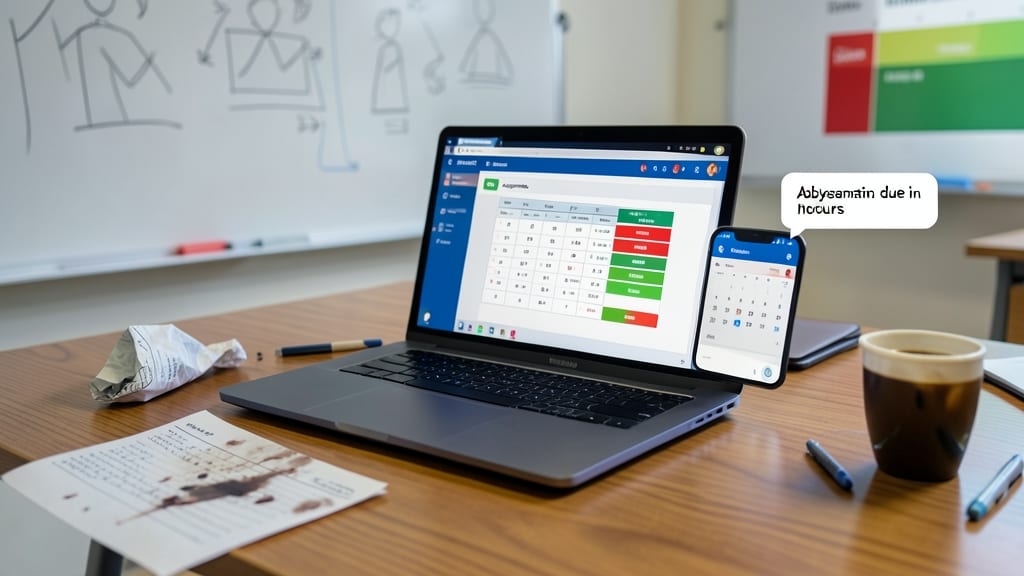
Tired of chasing down late assignments or deciphering handwritten rubrics? Microsoft Teams’ built-in assignment management system turns chaos into clarity with customizable deadlines, automated reminders, and real-time progress tracking—all in one place.
Create assignments with attached rubrics and due dates, then let Teams handle the rest: students receive personalized reminders (via email or in-app notifications), and you get a centralized dashboard showing submission status, late work, and even peer-review assignments. The integration with Office 365 apps means you can grade Word docs, Excel spreadsheets, or PowerPoint presentations without leaving the platform.
Perfect for high-school teachers juggling multiple classes or college professors managing group projects, this feature cuts grading time by 30% while keeping everyone accountable. No more lost papers or "I forgot" excuses—just a paperless, stress-free workflow. ✨
Interactive class notebook integration
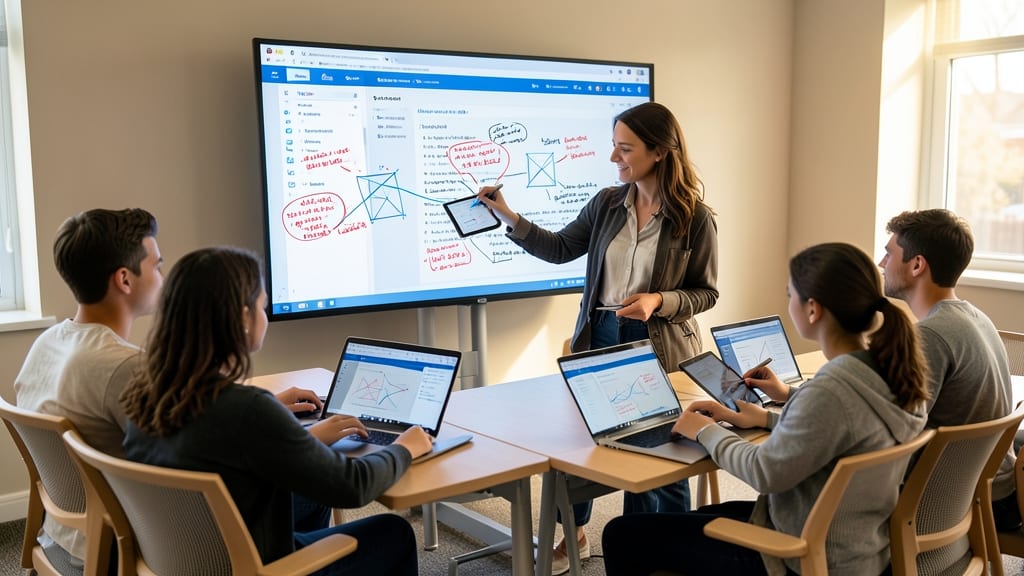
Transform static lessons into interactive, collaborative notebooks with Microsoft Teams’ seamless OneNote integration. This feature lets you create digital notebooks where students can annotate directly on lecture slides, draw diagrams, or highlight key concepts—all in real time.
The integration syncs across devices, so every student sees updates instantly. Teachers can embed videos, audio notes, and links, while students submit work directly to the notebook. Group projects become effortless with shared editing permissions, and visual learners thrive with the ability to sketch ideas or mark up documents.
Perfect for art classes, science labs, or history discussions, this tool turns passive note-taking into an active learning experience. ⚡
Secure file sharing and storage

Tired of chasing down lost USB drives or digging through physical folders for that one critical document? Microsoft Teams’ cloud-based storage with version control keeps all your lesson plans, student work, and resources securely accessible from any device—no more "I saved it to a flash drive" excuses.
Every file is automatically backed up, so you can revert to earlier versions if needed, and 1TB of cloud storage per user (with Office 365 Education) ensures you’ll never run out of space. Share entire folders with students or colleagues in seconds, set permissions to control who can edit or view, and rest easy knowing end-to-end encryption keeps sensitive data safe.
Perfect for teachers juggling multiple classes, grades, and devices—whether you're grading papers at home or collaborating with a colleague across campus. ✨
Virtual classroom with live lessons
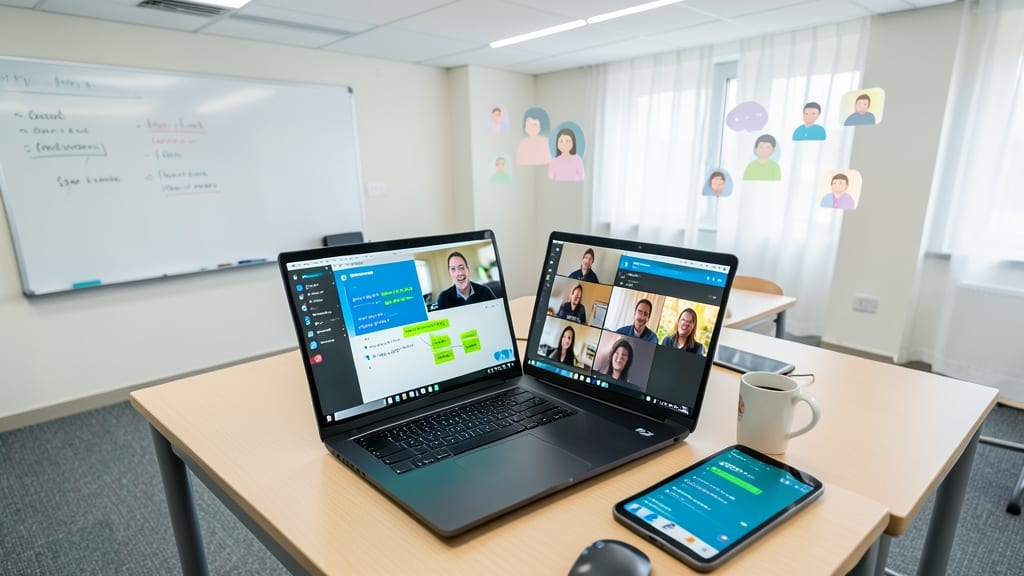
Turn unexpected absences into learning opportunities with Microsoft Teams’ virtual classroom—a full-featured space for live lectures, interactive screen sharing, and dynamic breakout rooms. Whether you’re covering a snow day or implementing a flipped classroom model, this tool keeps instruction flowing without skipping a beat.
The platform supports high-definition video, whiteboard annotations, and real-time polling to keep students engaged, while breakout rooms let you split classes into smaller groups for discussions or collaborative projects. Recording sessions automatically saves to the cloud, so students can revisit lessons anytime—perfect for reinforcing concepts or catching up on missed material.
Ideal for educators who want to blend in-person and virtual learning seamlessly, this feature ensures no student falls behind, regardless of where they’re logging in from. ✨
Parent-teacher-student communication bridge
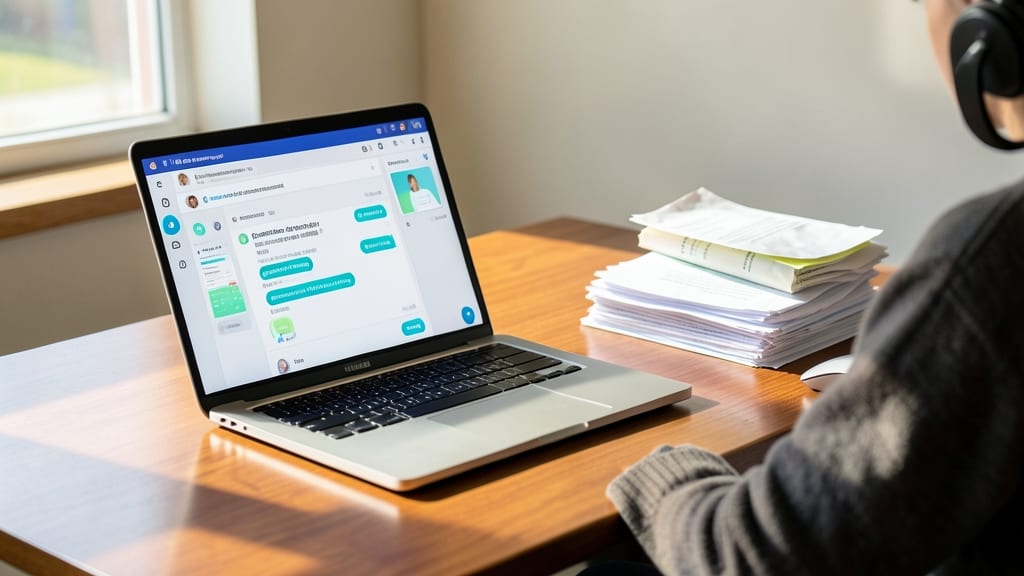
Tired of juggling endless parent emails and phone calls that leave everyone out of the loop? Microsoft Teams lets you create dedicated parent groups—one secure hub for announcements, event reminders, and progress updates that everyone can access instantly.
With @mentions to tag specific parents and file-sharing for permission slips or meeting agendas, you eliminate the chaos of scattered communications. The private group chats keep discussions organized by class or grade, while announcement tabs ensure no one misses critical updates—like field trip deadlines or test schedules.
Perfect for teachers who want to foster transparency and trust without the back-and-forth of personal emails. Parents love the clarity, and you’ll finally have a system that actually works. ✨
Automated grading and feedback tools
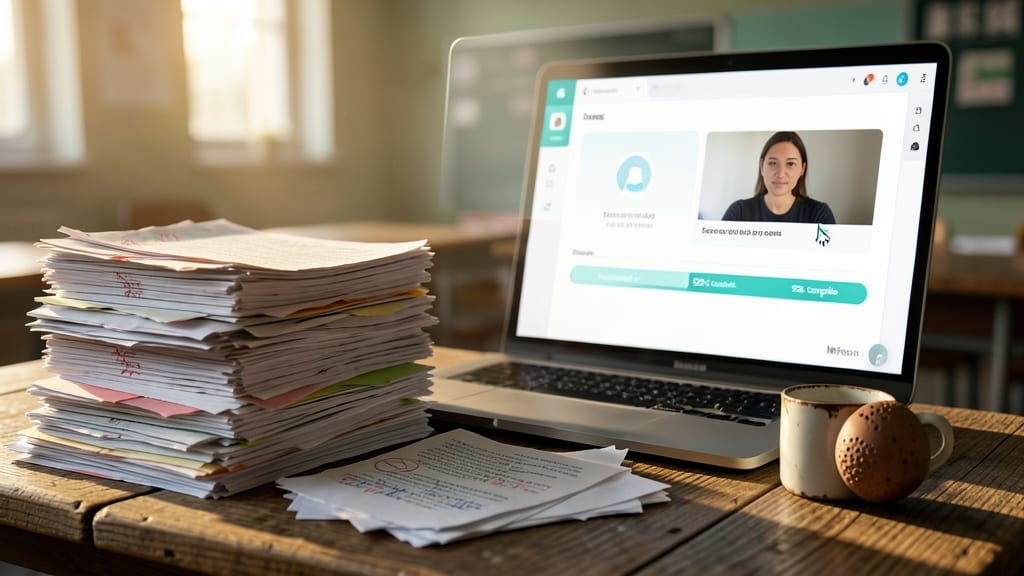
Tired of drowning in stacks of papers after grading assignments? Microsoft Teams’ automated grading and feedback tools—powered by Office 365 integration—turn tedious tasks into a breeze. Record audio or video feedback directly in assignments, attach voice notes to explain corrections, or use built-in rubrics to grade efficiently while tracking student progress in real time.
With Quizzes and Forms integration, you can auto-grade multiple-choice questions instantly, while OneNote and Word documents sync seamlessly for written feedback. The progress dashboard highlights trends, so you spot struggling students faster. No more late-night grading marathons—just personalized, timely responses that students actually hear and see.
Perfect for high-volume classes or busy educators, this tool ensures no student falls through the cracks while keeping your workflow streamlined and stress-free. ⚡
Built-in polls and quizzes
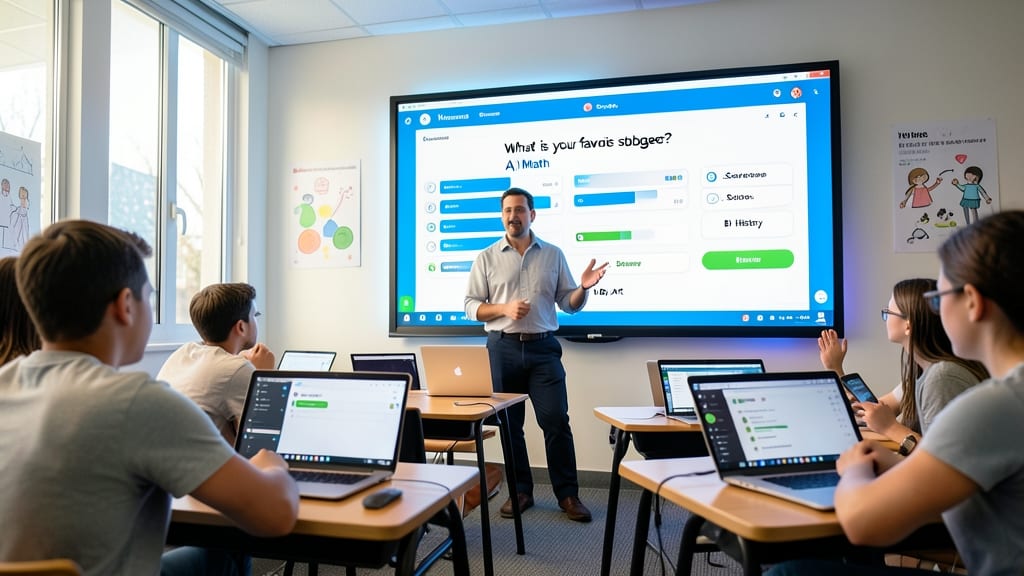
Turn passive classrooms into interactive learning hubs with Microsoft Teams’ built-in polls and quizzes, designed to spark engagement in seconds. Whether you need a quick icebreaker before a lesson or a real-time exit ticket to gauge comprehension, these tools work without requiring extra apps or logins—just launch them directly in your class chat.
Create custom multiple-choice, true/false, or short-answer questions with just a few clicks, and instantly see results in vibrant graphs or text responses. The anonymous polling feature lets shy students participate freely, while live quizzes with timers add excitement to review sessions. Best of all, these assessments auto-save to your Teams files for later analysis.
Perfect for substitute teachers, hybrid classrooms, or professional development sessions, this tool turns every meeting or lesson into an opportunity for instant feedback. 💡
Cross-platform accessibility for all devices
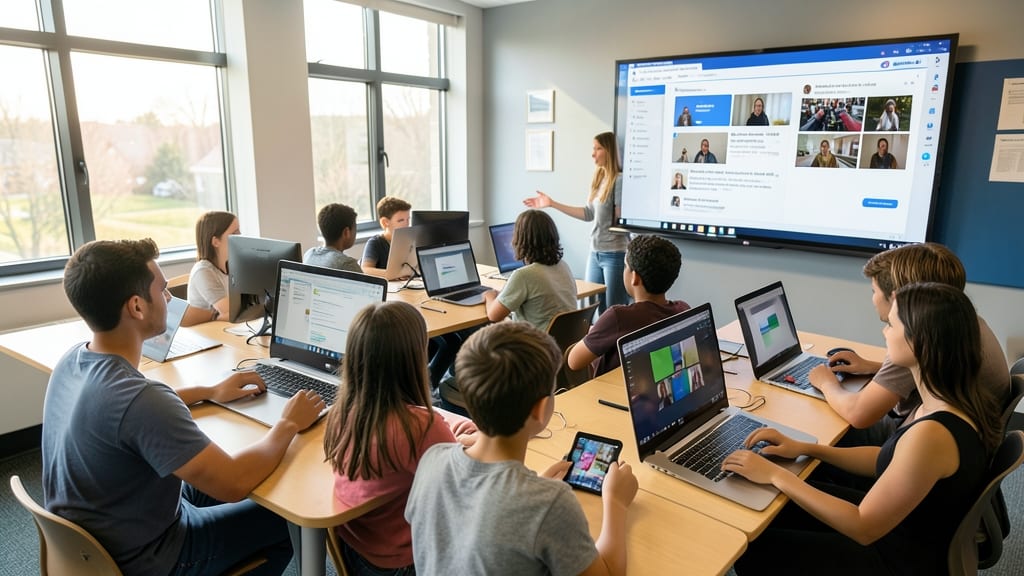
What if every student—regardless of device—could fully participate in your classroom? Microsoft Teams breaks down barriers with its cross-platform compatibility, ensuring seamless access on Windows, macOS, iOS, and Android, plus offline mode for areas with spotty connectivity.
The app syncs effortlessly across devices, so your lesson plans, chats, and assignments stay up-to-date whether you're using a laptop, tablet, or smartphone. Offline access means students in remote areas can still submit work or join discussions—no internet required. Plus, the universal app design eliminates the learning curve, letting teachers and students focus on learning, not tech struggles.
This flexibility makes Teams ideal for diverse classrooms, from urban schools with 1:1 devices to rural areas with limited resources. No student gets left behind. ✨