
Troubleshooting

IT support teams face repetitive issues daily—slow systems, login failures, and software crashes can derail productivity. These 10 knowledge base articles provide battle-tested, step-by-step fixes to resolve common tech problems efficiently and reduce help desk tickets.
Windows Login Screen Freeze Troubleshooting Guide
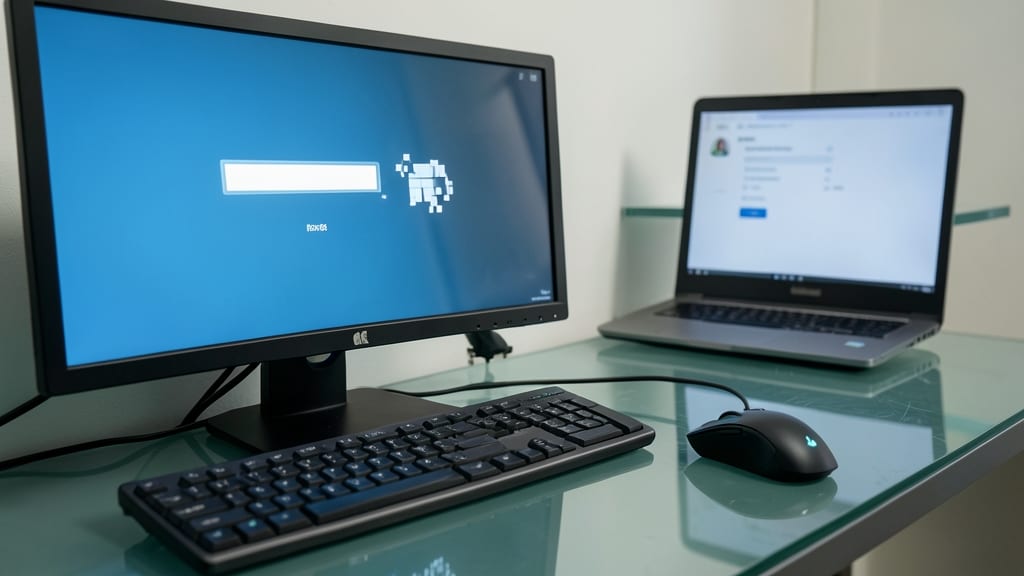
Stuck on a frozen Windows login screen? Whether it’s a Windows 10 or Windows 11 system, login loops can stem from corrupted profiles, outdated drivers, or even hardware conflicts like faulty RAM or failing storage.
Start by booting into Safe Mode (hold Shift + Restart during shutdown) to rule out software conflicts. Check for corrupted user profiles via ms settings:profiles or use System File Checker (sfc /scannow). For hardware issues, test RAM with Windows Memory Diagnostic or swap out storage drives—often, a failing SSD or HDD triggers authentication failures.
Help desks will appreciate the cross-version compatibility of these fixes, while end-users benefit from the zero-config troubleshooting steps that bypass advanced technical knowledge. ✨
Fixing Outlook Email Sync Errors Permanently

When Outlook sync errors cripple productivity, every minute counts—especially in offices where email is the lifeblood of communication. Whether it’s a frozen Exchange connection, IMAP timeouts, or POP3 authentication failures, these issues can turn a normal workday into a tech nightmare.
Start by verifying your account settings in Outlook (File > Account Settings), ensuring the correct server paths (e.g., outlook.office365.com for Exchange) and port numbers (993 for IMAP, 110 for POP3). Clear the Outlook cache via File > Office Account > Update Options, then reset the sync state by disabling and re-enabling the account. For Exchange, use the Microsoft Support and Recovery Assistant tool to diagnose deeper issues like corrupted profiles or server-side conflicts.
This guide is your go-to for IT teams managing Office 365 deployments or hybrid environments—where sync errors often stem from misconfigured permissions or network policies. Fix it once, and you’ll save hours of follow-up tickets. ✨
Resolving Printer Connection Issues on Windows
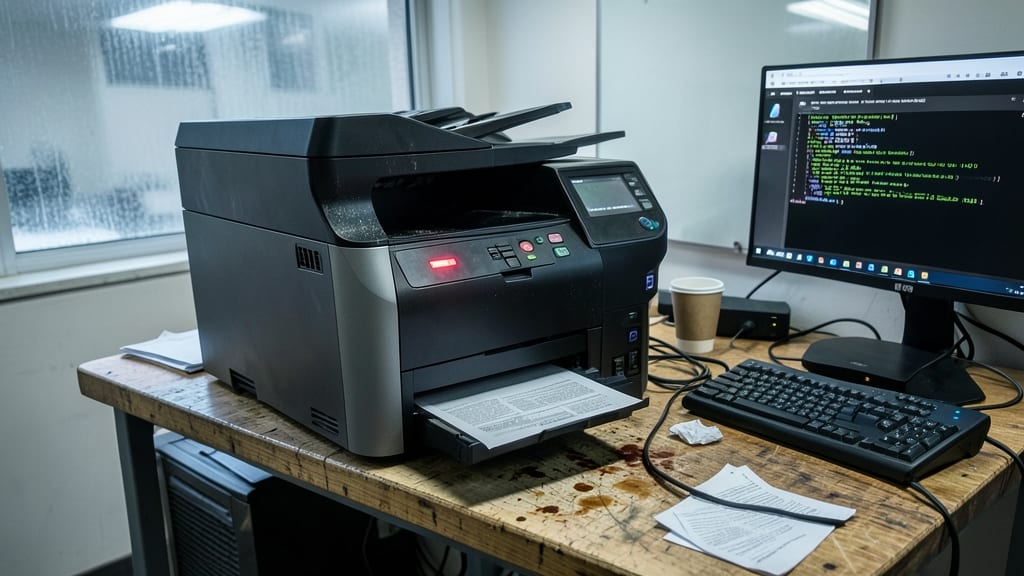
Shared office printers suddenly refusing to connect can grind productivity to a halt—especially when you’re juggling network and USB printer errors across multiple devices. This guide cuts through the frustration with targeted fixes for Windows 10/11, covering everything from outdated drivers to firewall blocks that silently sabotage print jobs.
Start by verifying the printer’s IP address (for network models) or USB port functionality—half of connection issues stem from basic hardware checks. Update drivers via Device Manager (right-click the printer > Update driver), and if Windows still can’t detect it, use the Print Server Properties tool to reset spooler services. For stubborn firewall conflicts, add an inbound/outbound rule for the printer’s port (usually 9100 for USB, 631 for network).
This is your go-to resource for IT teams managing multi-user environments, where a single printer outage can snowball into a department-wide headache. 💻
Linux Terminal Commands Every Support Agent Should Know
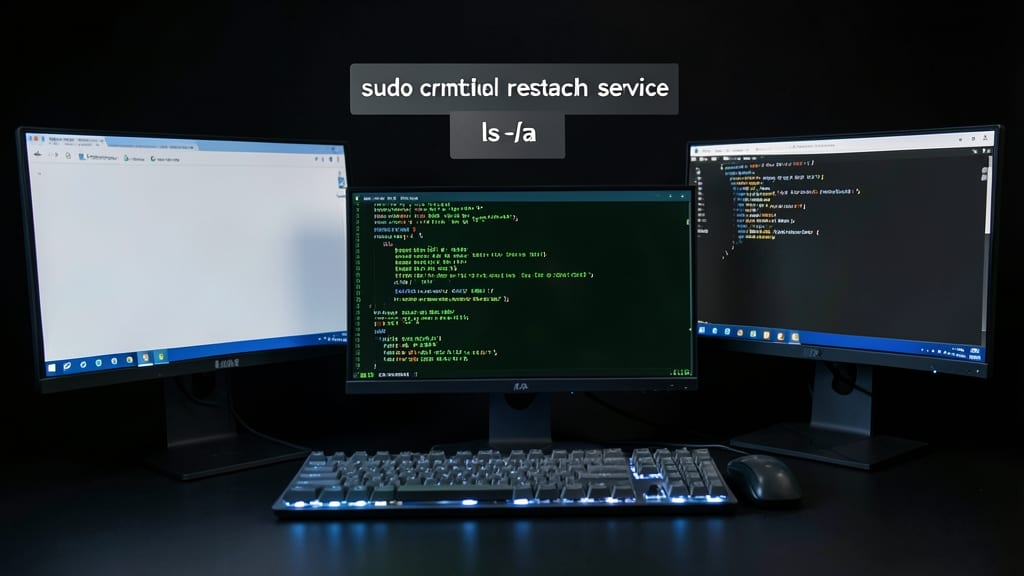
When Windows and macOS users knock on your door with Linux troubles, you’ll need more than just Google. A few terminal commands can diagnose permission errors, restart stuck services, and even recover lost files—saving hours of trial and error.
Master these essentials: chmod to fix permission issues, systemctl restart <service> to revive crashed services, and df -h to spot disk space problems. For deeper dives, journalctl -xe reveals system logs, while find / -name "filename" locates misplaced files. Bookmark these for mixed-OS environments where Linux lurks in the shadows.
Sysadmins juggling Windows, macOS, and Linux servers will love this cheat sheet—especially when users blame "the Linux machine" for their problems. ✨
PowerPoint Presentation Crashes and Recovery Steps
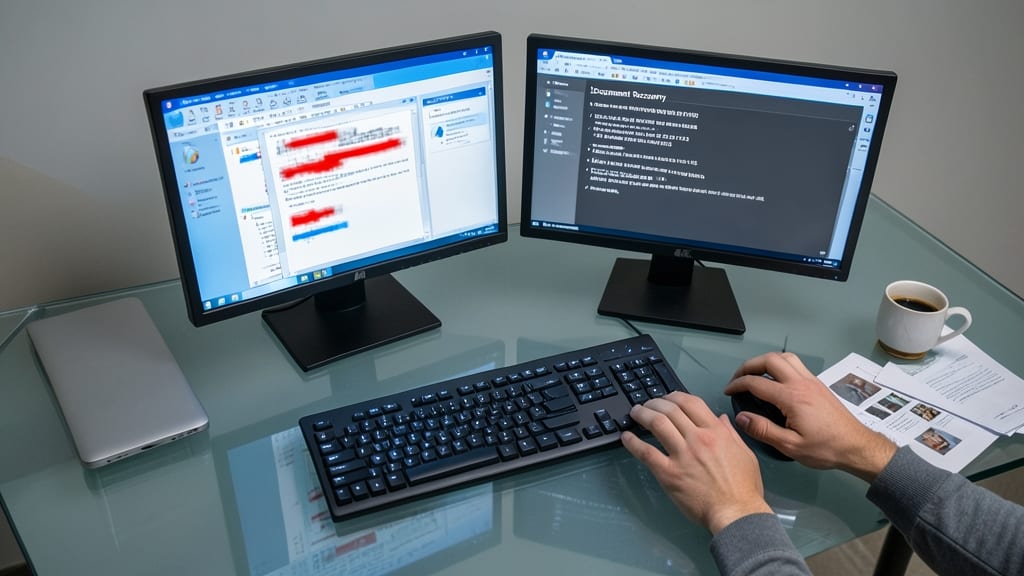
Nothing kills productivity faster than a PowerPoint crash mid-presentation—especially when you’ve spent hours perfecting slides for a critical meeting. The good news? Microsoft’s built-in recovery tools and simple workarounds can often restore corrupted files or retrieve unsaved work before it’s too late.
Start by checking the AutoRecover folder (default: C:\Users\[YourName]\AppData\Roaming\Microsoft\PowerPoint\AutoRecover), where PowerPoint stashes temporary backups every 10 minutes. If that fails, try opening the file in Safe Mode (hold Win + Alt + Shift while launching PowerPoint) to bypass add-ins causing crashes. For truly corrupted files, use the Object Recovery tool in newer versions (File > Open > Browse > Recover Unsaved Presentations) or convert the file to PDF and re-save it as a PPTX.
This guide is a lifesaver for marketing teams, educators, and executives who rely on PowerPoint for client pitches, training sessions, or board meetings—where a crash isn’t just frustrating, it’s costly. ✨
Remote Desktop Connection Problems and Fixes

When your team relies on Remote Desktop Protocol (RDP) for seamless collaboration, a single connection failure can halt productivity. Whether it’s a firewall blocking port 3389, expired credentials, or network restrictions, these issues are more common than you’d think—and fixable with the right steps.
Start by verifying that port 3389 is open on both the client and server firewalls (Windows Defender Firewall or third-party solutions like PFSense). If credentials fail, reset them via Active Directory or local account tools, and ensure Network Level Authentication (NLA) is disabled if legacy clients are involved. For persistent issues, check Group Policy settings under Computer Configuration > Administrative Templates > Windows Components > Remote Desktop Services.
This guide is your go-to for IT teams managing remote workforces or sysadmins supporting virtualized environments. With these fixes, you’ll minimize downtime and keep teams connected—no matter where they’re working. ✨
Chrome Browser Tab Freezes and Performance Tips

Frozen Chrome tabs and sluggish performance can turn a quick research task into a productivity nightmare—especially when your team relies on seamless web browsing for daily workflows. The issue often stems from memory leaks, conflicting extensions, or outdated browser processes, all of which drain resources and cause crashes.
Start by identifying the culprit: Open Task Manager (Ctrl+Shift+Esc) and sort tasks by memory usage to spot rogue tabs or extensions. Disable extensions one by one (chrome://extensions) to isolate conflicts, or reset them via the three-dot menu. For stubborn memory leaks, force-quit Chrome with Ctrl+Shift+Esc, then relaunch with the --disable-extensions flag to test performance. Updating Chrome to the latest version (currently Version 124+) often resolves underlying bugs.
This fix is a lifesaver for office environments where multiple users share devices or collaborate on web-based projects. A quick reset or extension audit can prevent hours of downtime. ⚡
Wi-Fi Signal Drop Solutions for Home and Office

When your team’s Zoom calls keep dropping mid-meeting or remote employees complain about "slow Wi-Fi," the issue is rarely the internet itself—it’s hidden interference, outdated firmware, or misconfigured router settings. These often-overlooked tweaks can transform a flaky connection into a stable, high-performance network for hybrid workforces.
Start by updating your router’s firmware (check the manufacturer’s website for the latest version) and shifting the Wi-Fi channel to 5GHz if possible—it’s less crowded and offers better speed. Next, adjust the transmit power to eliminate dead zones without overloading nearby networks. For persistent drops, use QoS (Quality of Service) settings to prioritize voice/video traffic, or add a Wi-Fi analyzer tool like NetSpot to pinpoint interference from microwaves, cordless phones, or neighboring routers.
IT teams managing remote offices will appreciate this zero-config approach—no expensive hardware upgrades needed. Just a few clicks in the router’s admin panel can resolve 80% of signal drop complaints. ✨
Recovering Deleted Files from Windows Recycle Bin

Panic over—even if a file vanishes from your Windows Recycle Bin, recovery is often possible with built-in tools and third-party solutions. The key lies in Volume Shadow Copies (VSS) and specialized software that scans unallocated disk space before data overwrites occur.
Start by right-clicking the Recycle Bin and selecting "Properties" to check if Shadow Copies are enabled (default in Windows 10/11). Use Previous Versions in File Explorer to restore deleted files from system snapshots. For deeper recovery, tools like Recuva (free) or EaseUS Data Recovery scan deleted files with high success rates—even after emptying the Recycle Bin. Always act fast, as overwritten data is permanent.
This method is a lifesaver for end-users who hit Delete by mistake or IT teams handling accidental data loss in shared drives. Just don’t wait too long—time is your biggest ally. 💻
Automating IT Support Responses with Chatbots

Tired of spending hours answering the same IT questions every day? AI-driven chatbots can handle 80% of routine queries—from password resets to printer issues—freeing your team for complex tasks. Platforms like Zendesk Answer Bot or Microsoft Copilot integrate with existing ticketing systems and learn from past interactions to improve accuracy over time.
Start with a pre-built knowledge base to train your chatbot on common IT issues, then enable 24/7 self-service for end-users. These tools typically support multi-language responses and escalate complex issues to human agents automatically. For growing teams, this means fewer tickets, faster resolutions, and happier employees.
Ideal for mid-sized businesses or IT departments with limited support staff, chatbots scale effortlessly as your user base grows. 💡