
PowerPoint
Elevate your PowerPoint game with these 7 dynamic transition effects that keep audiences engaged and make your presentations unforgettable. Whether you're a student, professional, or public speaker, smooth transitions can transform a basic slideshow into a polished, high-impact experience.
Morph Transition for Seamless Content Shifts

Struggling to keep data-heavy slides engaging without losing your audience’s focus? The Morph Transition in PowerPoint is your solution—it intelligently animates one chart, graph, or shape into another, creating a fluid visual flow that feels intentional, not distracting. Unlike basic fades, this effect analyzes your content and smoothly morphs elements like bar charts into line graphs or pie slices into text boxes, making complex data feel dynamic yet professional.
Available in PowerPoint 2016 and later, Morph works best with shapes, charts, and text boxes (though it ignores bullet points). You can adjust the duration (0.5s–5s) and even add a subtle sound effect for polish. For example, morph a declining pie chart into a rising bar graph to visually emphasize a shift in performance—your audience will appreciate the thoughtful design without being overwhelmed.
Perfect for analysts, financial presenters, and educators, this transition keeps your data-driven decks engaging while maintaining clarity. Just avoid overusing it—stick to 1–2 morphs per deck to keep the focus on insights, not flash. ⚡
Zoom Transition for Emphasizing Key Slides

Want to make your most important slides pop without distracting from your message? The Zoom Transition creates a cinematic zoom effect—either zooming in to highlight a key detail or zooming out to reveal a broader context. Unlike static transitions, this effect adds dynamic energy to introductions, conclusions, or pivotal takeaways in sales pitches.
To use it, select your slide, go to the Transitions tab, and choose Zoom. You can customize the direction (in or out), speed (from 0.5x to 4x), and even add a sound effect for extra impact. Pair it with a high-contrast slide design (e.g., a bold title zooming out to reveal data) to maximize its effect. Pro tip: Use zoom-out transitions for conclusions to signal the end of a section.
Sales professionals, trainers, and keynote speakers will love this for creating memorable moments—like zooming in on a headline statistic or zooming out from a problem to reveal a solution. Just avoid overusing it in data-heavy decks where clarity matters most. 💡
Push Transition for Dramatic Slide Changes
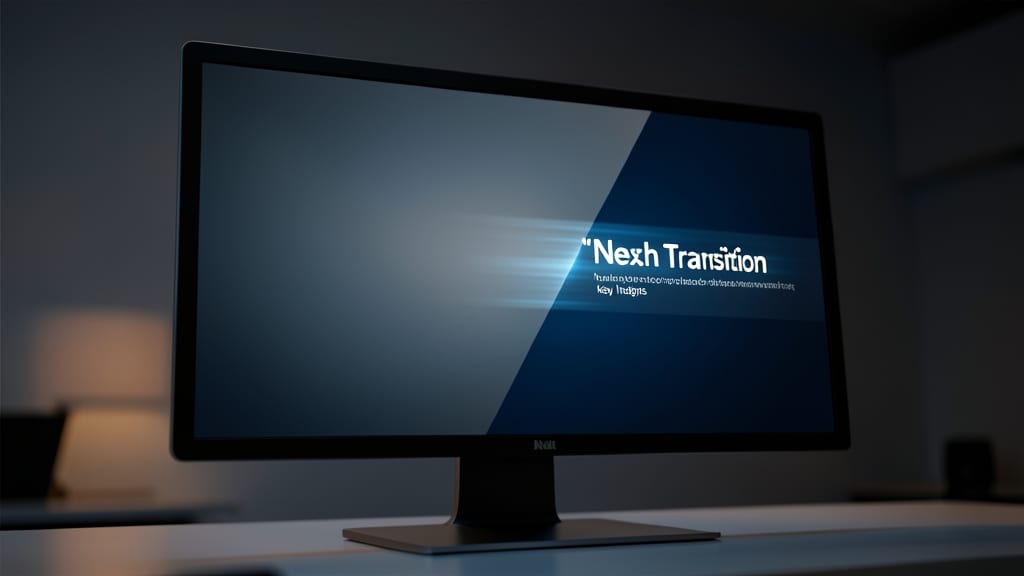
Want your presentation to feel like a blockbuster movie? The Push Transition slides one screen out while the next glides in, creating a cinematic shift that keeps your audience visually engaged. Unlike simple fades or zooms, this effect adds motion and directionality, making it perfect for storytelling where pacing matters.
You can choose from five push directions (left, right, up, down, or center), and the speed is fully customizable—ideal for dramatic reveals or smooth narrative flow. Works best with high-contrast slides (e.g., dark-to-light or vice versa) to emphasize the transition’s impact. For creative projects, pair it with sound effects for extra immersion.
Storytellers, marketers, and educators will love this for keynote moments—like unveiling a solution or shifting from problem to solution. Just avoid overusing it in data-heavy decks. ✨
Fade Transition for Elegant Simplicity
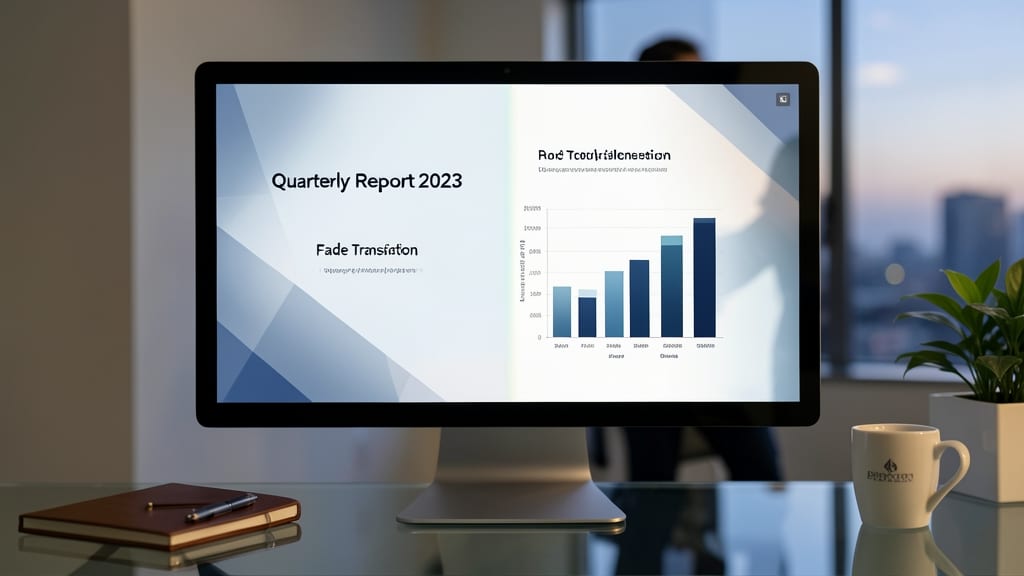
When your goal is to keep the focus on content—not flashy animations—the Fade Transition delivers understated sophistication. This classic effect gently dissolves one slide into the next, creating a seamless flow that feels polished and intentional, without distracting from your message.
Available in all modern PowerPoint versions, the Fade Transition offers customizable speed (from 0.5x to 4x) and directional options (fade in/out or cross-fade). It’s lightweight enough to run smoothly even on older hardware, and its zero-config simplicity makes it ideal for presentations where clarity is key. Pair it with a solid color background (like white or dark gray) to amplify its clean aesthetic.
Perfect for corporate analysts, educators, or researchers presenting data-heavy reports, the Fade Transition ensures your audience stays focused on insights—not flashy distractions. ⚡
Wipe Transition for Creative Storytelling
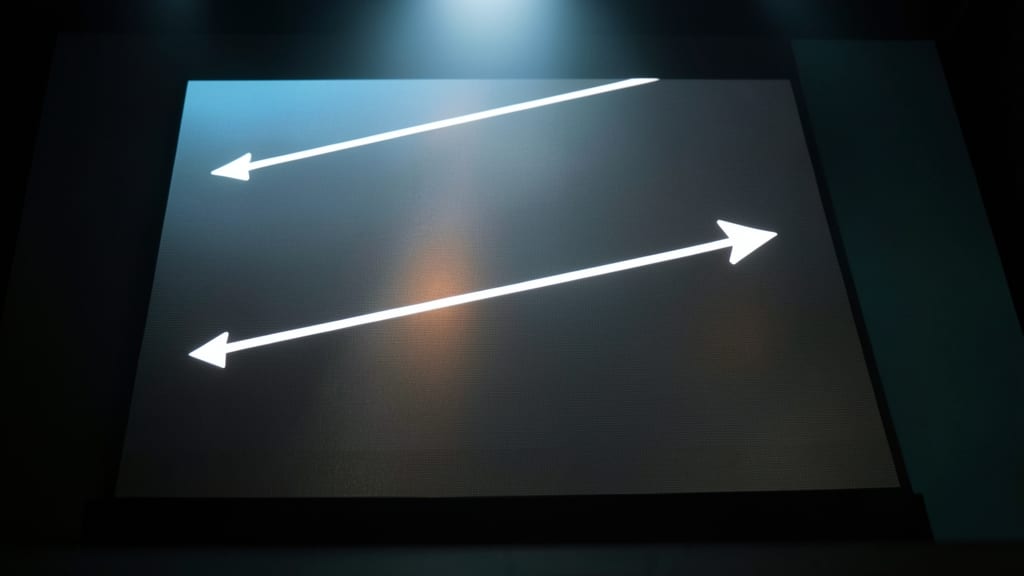
Want to guide your audience’s attention like a director? The Wipe Transition lets you choose from four precise directions—left, right, up, or down—to reveal each slide with cinematic flair. Unlike generic fades or zooms, this effect creates a deliberate, story-driven flow perfect for tutorials, historical timelines, or step-by-step guides.
Simply select the Transition tab in PowerPoint, pick Wipe, and choose your direction. You can even adjust the speed (slow for emphasis, fast for pacing) and add a subtle sound effect. Pro tip: Use horizontal wipes for sequential processes (like recipes or workflows) or vertical wipes to signal a shift in topics—like moving from "Problem" to "Solution."
Educators and marketers will love this for its clarity and control, while creatives can use it to mimic film transitions. Test it in Slide Show mode to ensure smooth playback—your audience will notice the intentionality! ✨
Slide Transition with Sound for Engagement

Need to keep your audience engaged during hands-on training or workshops? The Slide Transition with Sound adds a layer of interactivity by syncing visual transitions with subtle audio cues like chimes, clicks, or even custom sound files. This isn’t just about flashy visuals—it’s about creating a multisensory experience that reinforces key moments in your presentation.
To use it, simply apply any transition (e.g., Fade or Push), then head to the Transition tab in PowerPoint. Under Sound, pick from built-in options like "Chimes" or "Click"—or import your own WAV file for a personalized touch. Pair this with a medium transition speed (0.5–1.0 seconds) to avoid distracting from your content. Pro tip: Use sound sparingly to mark transitions between sections or to signal a question-and-answer segment.
Trainers, educators, and facilitators will love this for breaking the monotony of slideshows, while corporate presenters can use it to highlight actionable takeaways without overwhelming the audience. Just remember to test your audio in presentation mode beforehand! ✨
Custom Path Transition for Unique Visuals

Tired of the same old slide transitions? The Custom Path Transition lets you draw your own route for slides to follow—whether it’s a swirling spiral, a zigzag, or a custom curve. This isn’t just another preset; it’s your canvas to create a signature visual style that makes your presentation instantly recognizable.
To use it, navigate to the Transitions tab, select More Transitions, and choose Custom Path. A drawing tool appears—simply sketch your desired path using your mouse or touchpad. You can adjust the speed and direction for added flair, and even loop the path for continuous motion. Perfect for artists, designers, or anyone who wants to break the mold of standard transitions.
Ideal for portfolio reviews, creative pitches, or artistic lectures, this transition turns your slideshow into a dynamic experience. Just be sure to preview it in Slide Show mode to ensure smooth playback. ✨