
Software
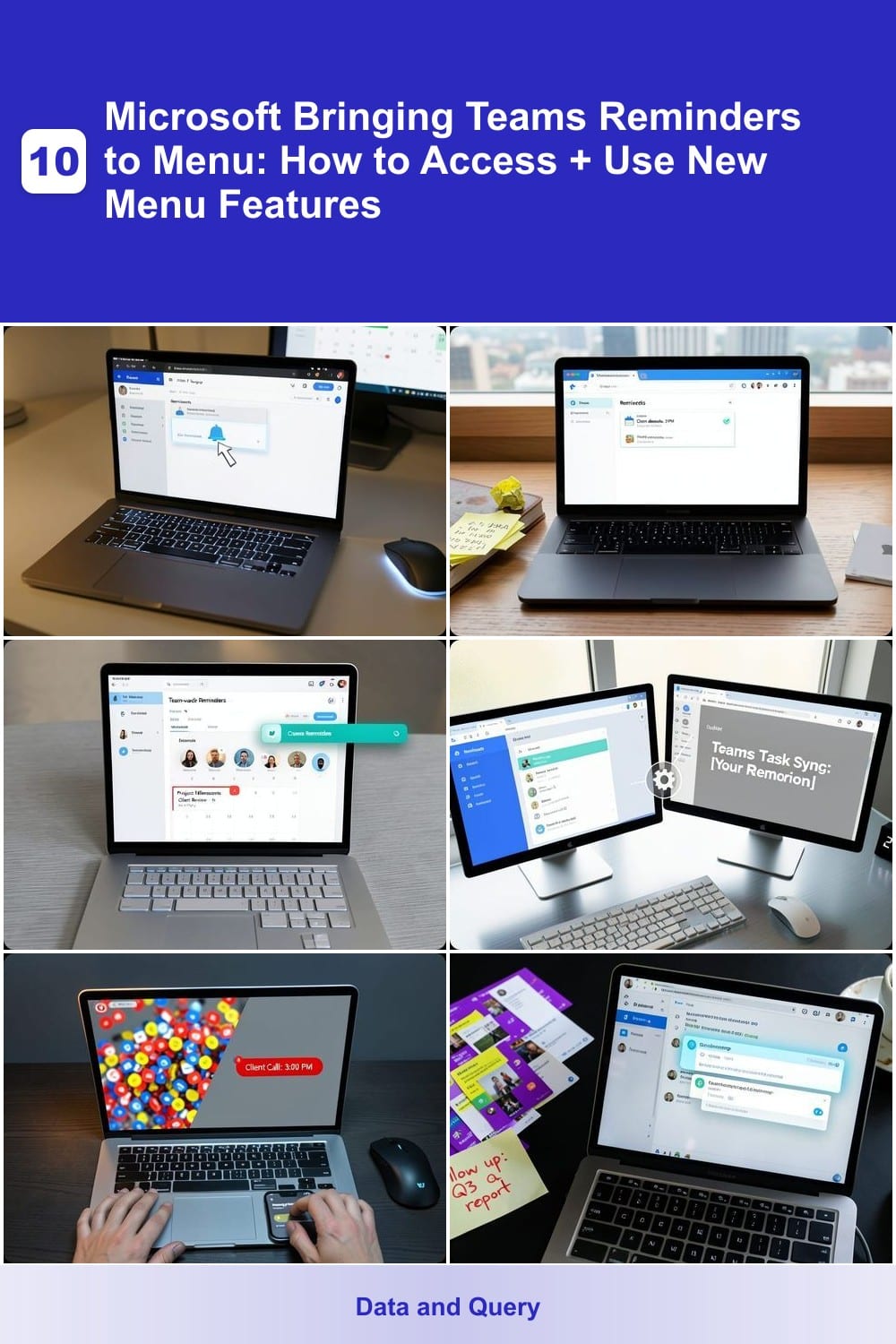
Microsoft is rolling out a major update to Microsoft Teams by integrating reminders directly into the menu. This change simplifies task management and boosts productivity—here’s how to access and leverage these new features effectively.
How to Enable Reminders in Teams Menu
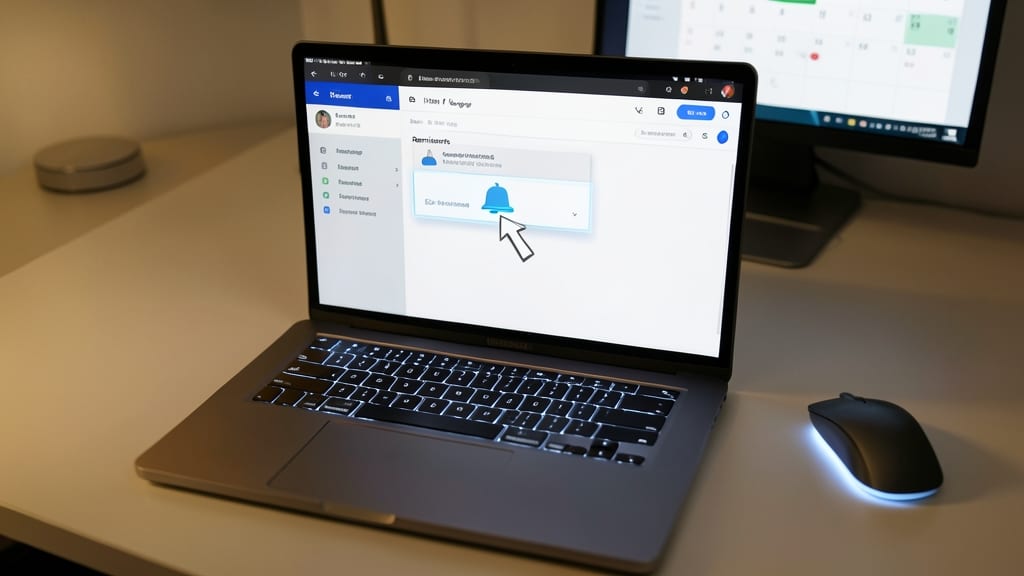
If you’ve never used Teams reminders before, don’t worry—enabling them is simpler than you think. Microsoft’s latest update moves reminders directly into the main menu, so you can access them without digging through hidden settings. This change makes it easier than ever to keep track of tasks while staying in your familiar Teams workflow.
Start by opening the Microsoft Teams desktop or web app. Look for the three-dot menu (⋮) in the top-right corner of the screen. Hover over it, then select "Show more options" to reveal the full menu. From there, click "Reminders"—this will open the reminders panel where you can create, view, and manage all your tasks in one place. The feature works seamlessly across desktop, web, and mobile, so your reminders stay synced no matter where you access Teams.
Perfect for new Teams users or anyone who prefers a streamlined approach, this update eliminates the need for third-party apps or complex setups. Whether you’re managing personal deadlines or team tasks, the reminders menu puts everything at your fingertips—no tech skills required. ✨
Creating Personal Reminders Within Teams
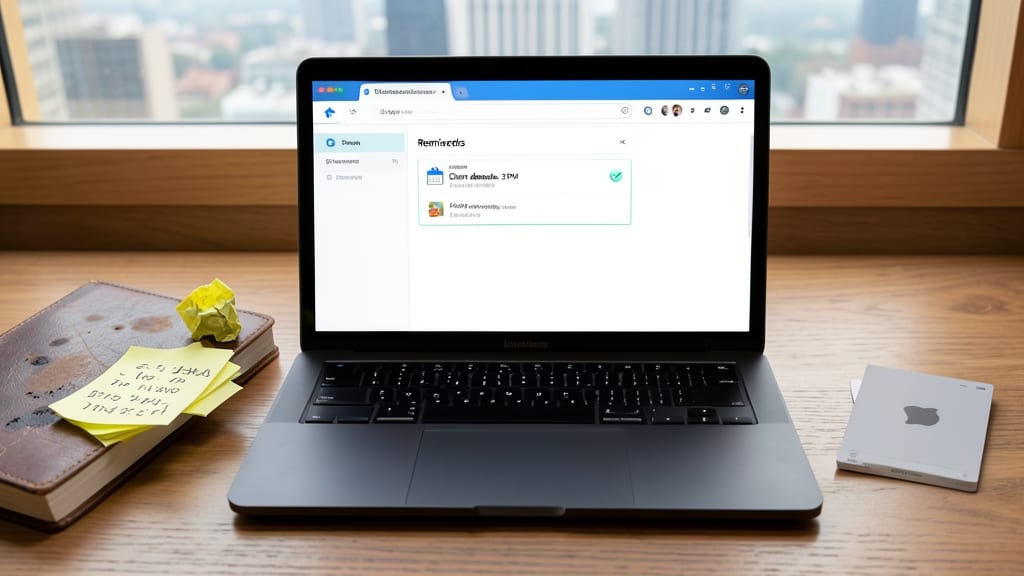
Freelancers and remote workers no longer need to juggle sticky notes or third-party apps—Teams’ new personal reminders let you set tasks directly within your workflow. This feature is designed for solo users who want zero-app-switching while keeping track of deadlines, meetings, and personal goals.
To create a reminder, simply click the three-dot menu in Teams, select "Add a reminder", and input your task with a due date, time, and priority level. The best part? These reminders sync automatically with your Teams calendar, ensuring nothing slips through the cracks. You can even set recurring reminders for weekly tasks like client check-ins or monthly reports.
Perfect for freelancers managing multiple projects or remote workers who rely on Teams for communication, this feature keeps your to-do list visible where you already spend your time. No more tab-hopping—just productivity in one place. 💡
Setting Team-Wide Meeting Reminders
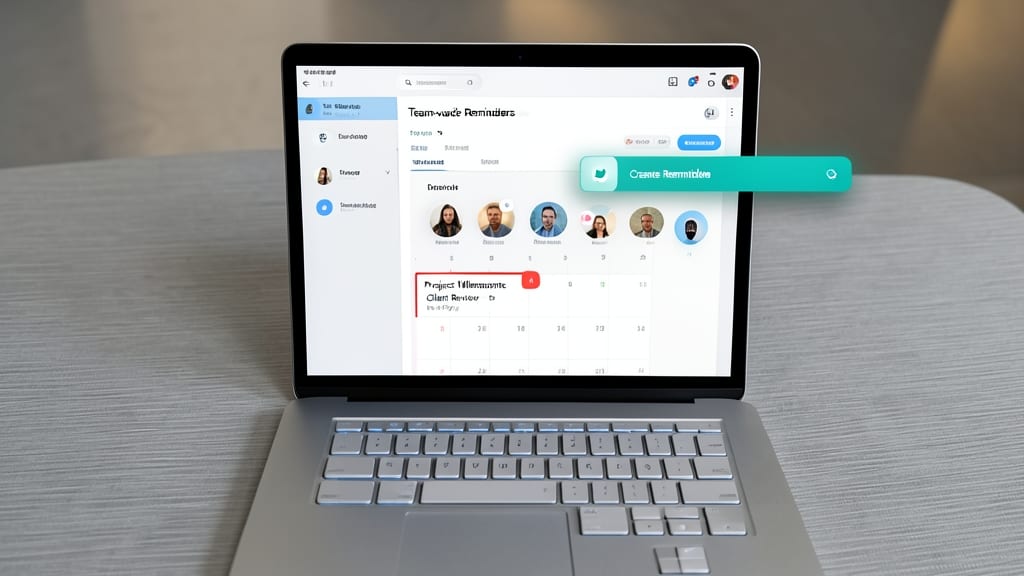
Managing team deadlines just got easier with Teams’ new team-wide reminders, designed specifically for managers to keep projects on track without endless emails or Slack pings. This feature lets you create shared reminders visible to the entire team—whether it’s a project milestone, client call, or recurring sync—all within the same channel where discussions happen.
To set one, simply open a team channel, click the three dots next to the chat bar, and select "Add a reminder." Assign a due date, time, and priority level (low, medium, or high), then tag team members directly in the reminder for accountability. The system automatically notifies everyone via Teams notifications, and you can even pin reminders to the top of the channel for constant visibility.
This is a game-changer for agile teams and remote workgroups where coordination happens across multiple tools. No more lost deadlines or forgotten tasks—just one centralized hub for the whole team. ✨
Syncing Reminders with Outlook Calendar
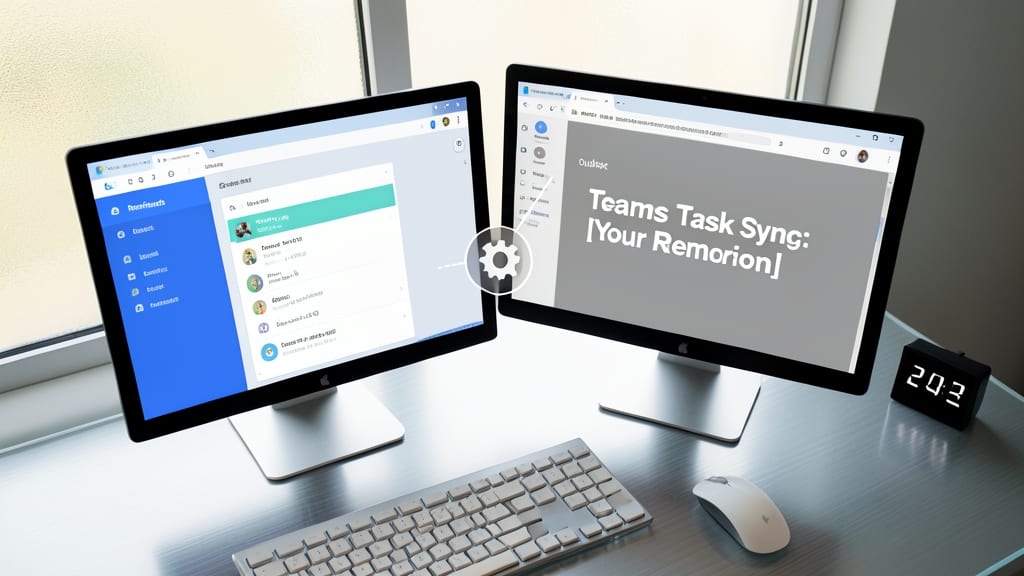
Tired of juggling between Teams and Outlook just to stay on top of your tasks? Microsoft’s new automatic sync feature bridges the gap between Teams reminders and your Outlook Calendar, ensuring no task slips through the cracks.
With a few clicks, your Teams reminders will appear in Outlook as events, complete with due dates, descriptions, and recurrence settings. This two-way sync eliminates the need to manually transfer tasks, saving you time and reducing the risk of missed deadlines. The integration works seamlessly across desktop and mobile, so your schedule stays aligned whether you’re in the office or on the go.
This feature is a game-changer for professionals who rely on both platforms—think project managers, sales teams, or anyone juggling personal and work tasks. No more double-checking; just one unified view of your priorities. ✨
Customizing Reminder Notifications in Teams
Drowning in notifications but still need your critical reminders to stand out? Teams now lets you fine-tune alerts to match your workflow—without missing what truly matters. You can silence non-urgent pings while ensuring deadlines or client calls get your full attention.
Start by adjusting notification frequency (e.g., daily summaries instead of real-time alerts) and priority labels to mark high-stakes tasks. For extra focus, enable "Do Not Disturb" modes during deep work hours, then whitelist key reminders. The mobile app even lets you toggle sounds per reminder type, so your phone stays quiet unless it’s urgent. ⚡
Perfect for busy professionals juggling meetings and projects, or creatives who need uninterrupted blocks—this customization keeps Teams from becoming a distraction machine. 💻
Using Reminders for Task Delegation in Teams
Project managers drowning in Slack threads and email chains will love Teams' new task delegation reminders—a game-changer for distributed teams. Instead of manually chasing up tasks, you can now assign reminders directly to teammates through the @mention feature, ensuring accountability without the back-and-forth.
To delegate a reminder, simply create a new reminder in Teams, add the task details, and tag a team member using their @handle—just like a chat message. The recipient gets a dedicated notification in their Teams activity feed, complete with a clear due date and priority flag. This keeps everything visible in one place, reducing context-switching between apps.
Ideal for agile teams or remote workgroups, this feature cuts through the noise by centralizing tasks within Teams. No more lost emails or forgotten Slack messages—just real-time visibility and ownership. 💪
Troubleshooting Common Reminders Issues
Frustrated when your Teams reminders vanish or sync errors pop up? These quick fixes will get you back on track without stress. Most issues stem from minor glitches like outdated app versions or conflicting permissions—easy to resolve with the right steps.
Start by updating Teams to the latest version (check under Help > About Microsoft Teams). If reminders still fail to sync, clear your app cache (Windows: %appdata%\Microsoft\Teams; Mac: ~/Library/Application Support/Microsoft/Teams). For permission issues, ensure your Microsoft 365 account has full access to the Teams app and reminders feature.
Busy professionals and remote workers will appreciate these zero-config fixes—no IT support needed. A quick restart of the Teams app often resolves lingering sync errors too. 💻