
Software
Microsoft Edge is packed with features that can make browsing faster, more secure, and more personalized—but only if you know how to use them. These seven tips will help you optimize Edge without sacrificing functionality, ensuring a seamless experience every time you open your browser.
Enable Immersive Reader for Focused Reading
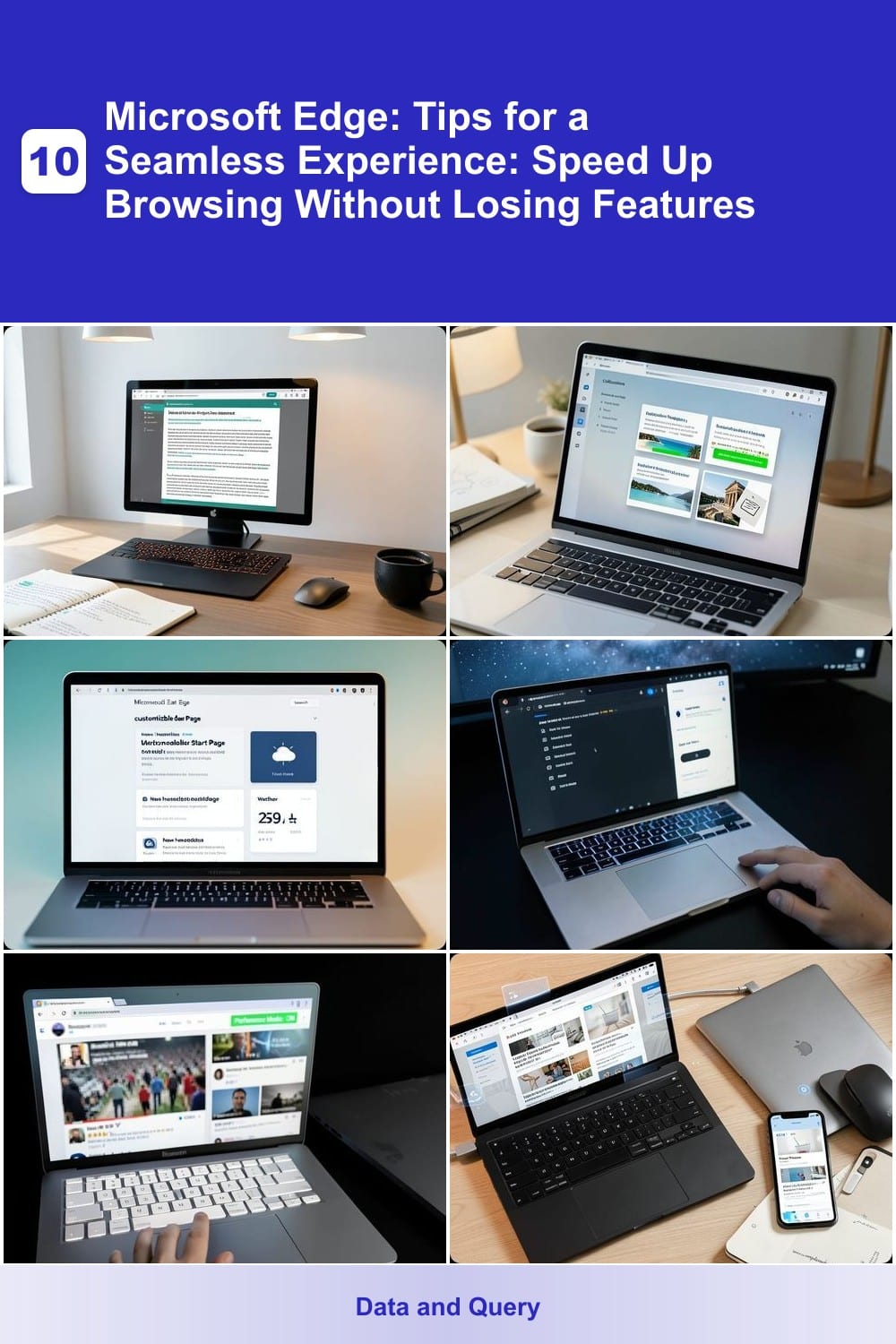
Struggling to focus while reading dense articles, research papers, or even long-form emails? Microsoft Edge’s Immersive Reader transforms any text-heavy page into a distraction-free, dyslexia-friendly experience with just one click.
This built-in tool lets you adjust font sizes, line spacing, and reading modes (like dyslexia-friendly styles) to reduce eye strain. You can also highlight text by syllables or parts of speech, and even listen to the content via text-to-speech. It works seamlessly with Microsoft 365 apps (Word, Outlook) or any webpage—no extensions needed.
Perfect for students, researchers, or professionals who spend hours reading, Immersive Reader turns overwhelming text into a clear, manageable format. Give your eyes a break and boost comprehension at the same time. ⚡
Use Collections to Organize Web Content Instantly
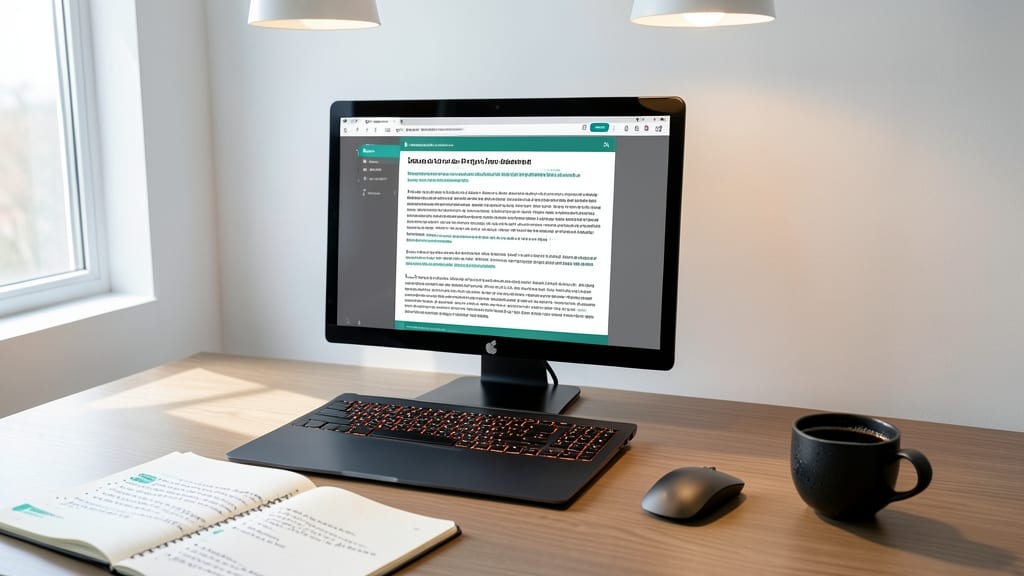
Drowning in tabs while researching a project or planning a trip? Microsoft Edge’s Collections feature turns chaos into a shareable workspace—no extensions or extra apps needed. With just a few clicks, you can clip text, images, and even notes from multiple tabs into a single, organized hub.
To start, highlight any text or image on a webpage, then click the three-dot menu and select "Create collection." Name your project (e.g., "Vacation Itinerary" or "Marketing Campaign"), and Edge will automatically save snippets, screenshots, and even full articles. The drag-and-drop interface lets you rearrange items visually, while the search function helps you find notes instantly. Share your collection via a simple link—no attachments or cluttered emails required.
This is a game-changer for researchers, travelers, or creatives who need to gather inspiration without losing context. Say goodbye to scattered tabs and hello to a battle-tested setup. ⚡
Customize Start Page with News and Weather Widgets
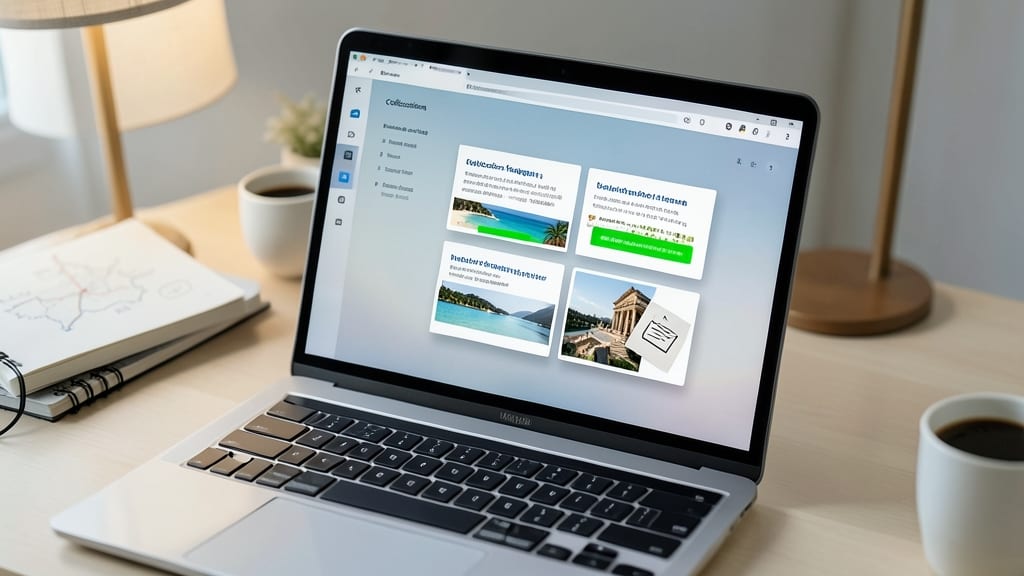
Tired of scrolling through endless bookmarks just to find what you need? Microsoft Edge’s customizable Start Page turns your homepage into a productivity powerhouse with real-time widgets—no extensions required. Swap clutter for a sleek dashboard that shows news headlines, weather forecasts, and even stock updates at a glance.
To get started, click the three-dot menu in Edge, then select Settings > Appearance. Toggle Show news and interests or Show weather to add widgets, and pin your most-used sites below. The weather widget updates automatically, while news feeds pull from trusted sources like CNN or BBC—all without slowing down your browser. You can even rearrange or resize widgets to match your workflow.
This setup is perfect for remote workers, commuters, or anyone who checks the weather before heading out. No more tab overload—just a clean, functional hub that adapts to your day. ✨
Enable Dark Mode for Reduced Eye Fatigue
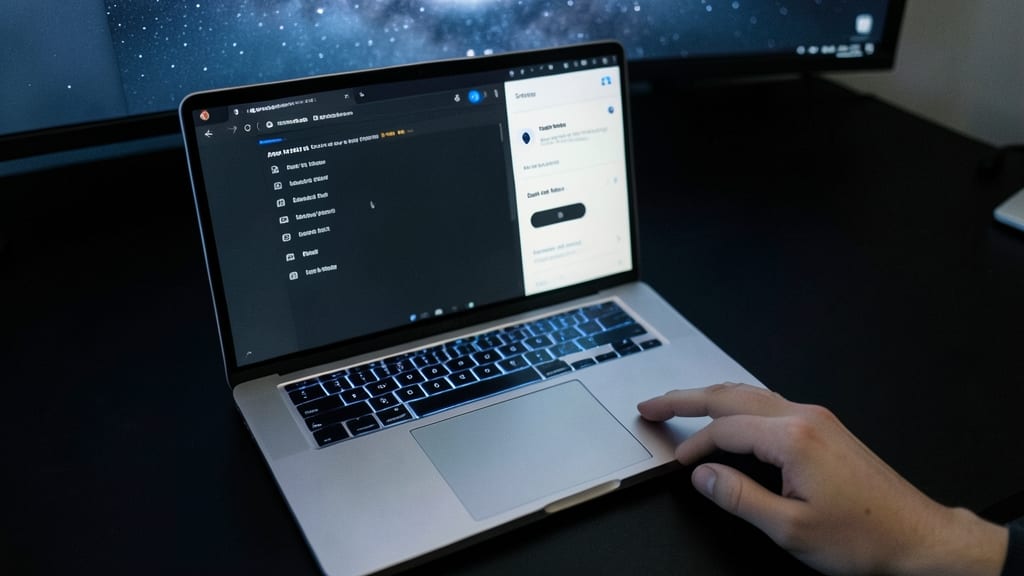
Late-night browsing or sensitive eyes? Microsoft Edge’s Dark Mode is your solution—it reduces screen glare while saving up to 30% battery life on laptops by dimming the UI to near-black.
To enable it, click the three-dot menu → Settings → Appearance, then toggle Dark under "Choose your default theme." Websites like YouTube and Twitter automatically adapt to match, creating a cohesive experience. The purple accent colors add a sleek touch without straining your vision.
Perfect for night owls, developers in low-light offices, or anyone with light-sensitive eyes, Dark Mode turns long browsing sessions into a gentler experience. ✨
Speed Up Loading with Built-in Performance Mode
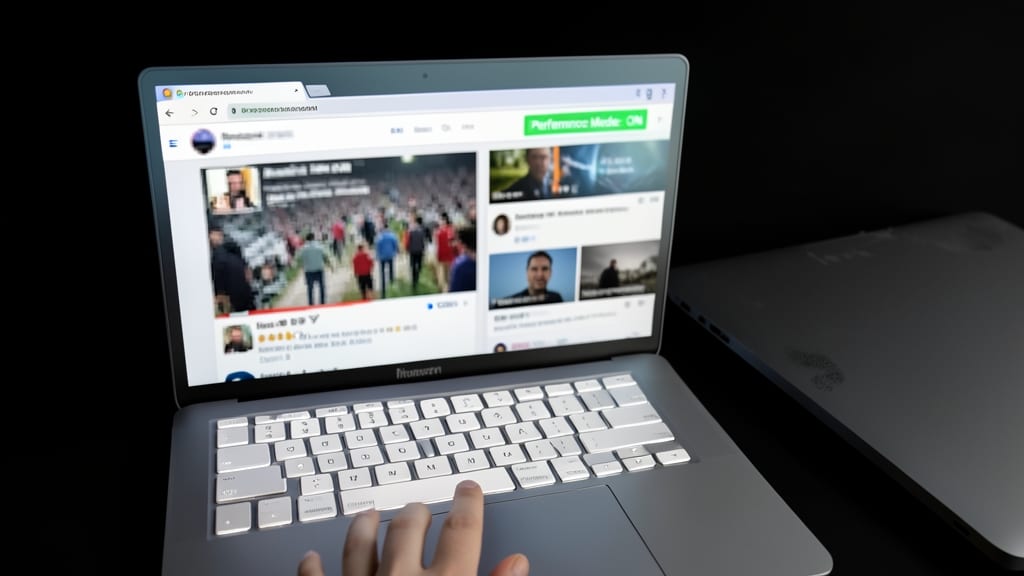
Struggling with slow-loading social media feeds or buffering streams? Microsoft Edge’s Performance Mode is your secret weapon—it intelligently prioritizes critical page resources, cutting load times by up to 40% on weaker connections.
To enable it, open Edge’s Settings (Ctrl+Shift+I), navigate to System > Performance, and toggle Performance Mode. This feature works behind the scenes by optimizing how scripts, images, and videos load, making it perfect for data-heavy sites like Netflix or LinkedIn. No extensions or complex tweaks required!
Perfect for travelers, students on public Wi-Fi, or anyone frustrated by laggy sites. Give it a try—your tabs will thank you. ⚡
Sync Tabs Across Devices with Microsoft Account
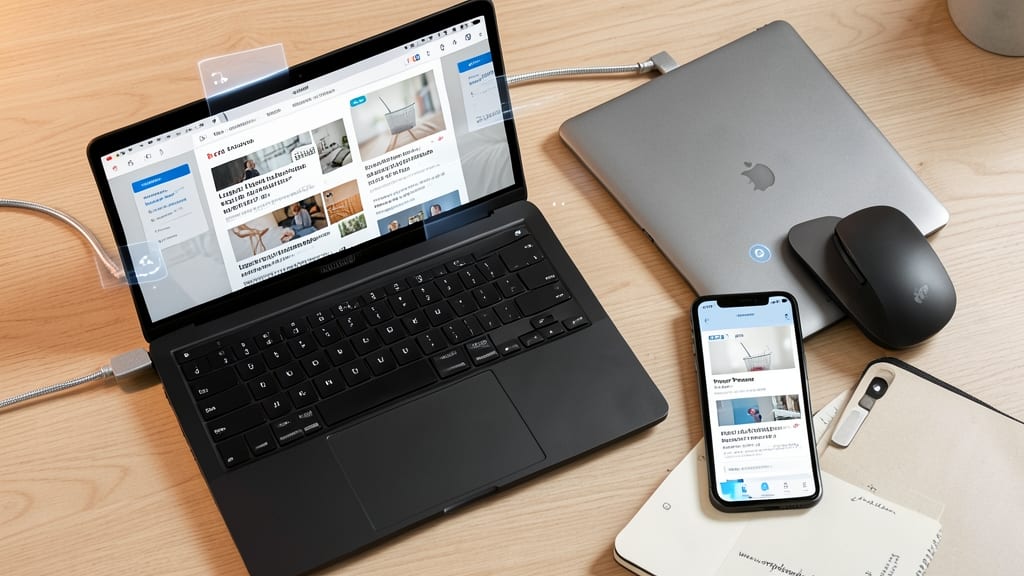
Tired of losing your place when switching between your laptop, phone, and tablet? Microsoft Edge’s sync feature lets you pick up right where you left off—no bookmarks or retyping URLs required.
With a Microsoft Account, you can sync open tabs, browsing history, and even extensions across all your devices. The setup is simple: just enable sync in Settings > Profiles, and your tabs will auto-update in real-time. This is a game-changer for remote workers juggling research, meetings, and notes or multitaskers who hop between devices throughout the day.
No extra apps or manual effort needed—just seamless continuity. Perfect for anyone who wants their browser to work as hard as they do. 🌟
Block Trackers with Privacy Settings
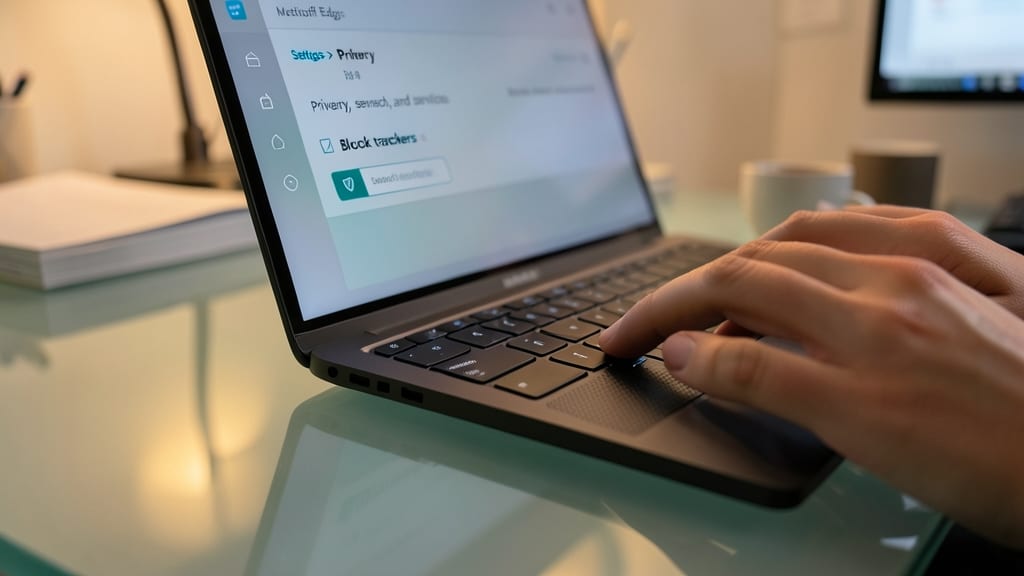
Tired of ads following you across the web like a digital shadow? Microsoft Edge’s built-in privacy settings can block trackers without slowing you down—no VPNs or extensions required. It’s like having a silent bodyguard for your browsing history.
Navigate to Settings > Privacy, search, and services, then toggle on Block trackers and Prevent sites from fingerprinting. Edge uses Microsoft’s SmartScreen and Privacy Dashboard to identify and block third-party trackers in real time, while still letting you access the content you want. The best part? It works seamlessly with Microsoft Defender for Endpoint, adding an extra layer of protection for users on Windows.
This is perfect for privacy-focused professionals, students researching sensitive topics, or anyone who wants to browse faster without sacrificing security. Your data stays yours—no extra software needed. 💻