
Software
Microsoft Teams channels can become chaotic without structure. These 10 best practices will help you organize workflows, boost collaboration, and transform messy channels into productivity powerhouses—whether you're managing a small team or scaling enterprise-wide communication.
Standardize Channel Naming Conventions for Clarity

Struggling to find the right channel when your team hits 50+ channels? A standardized naming system cuts search time by 70%—no more guessing between "#general," "#random," or "#client-x." Instead, use prefixes like #proj- for projects, #dept- for departments, and #topic- for cross-functional discussions. This simple tweak turns chaos into clarity, especially when combined with color-coding or emoji icons.
For example, name project channels as #proj-marketing-campaign instead of just "Marketing." Department channels follow #dept-hr or #dept-finance, while cross-team topics use #topic-product-launch. Teams also supports hashtags (e.g., #urgent or #feedback) for quick filtering. Pro tip: Update your team’s channel naming guide in a pinned post to keep everyone aligned.
This works best for growing teams, agencies, or enterprises where channels multiply faster than coffee cups. With consistency, even new hires can navigate your workspace like a pro. 💻
Use Channel Templates to Save Setup Time
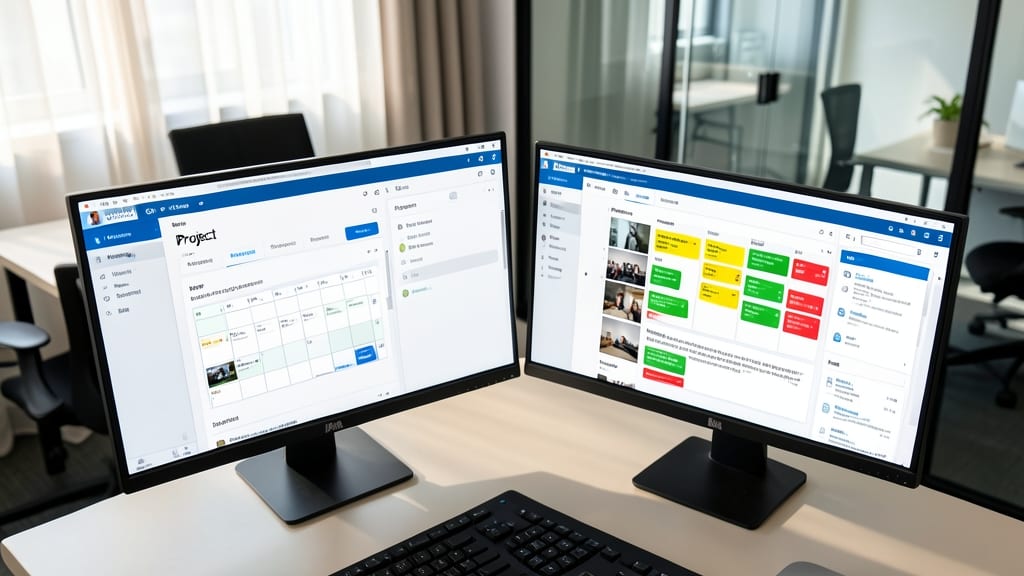
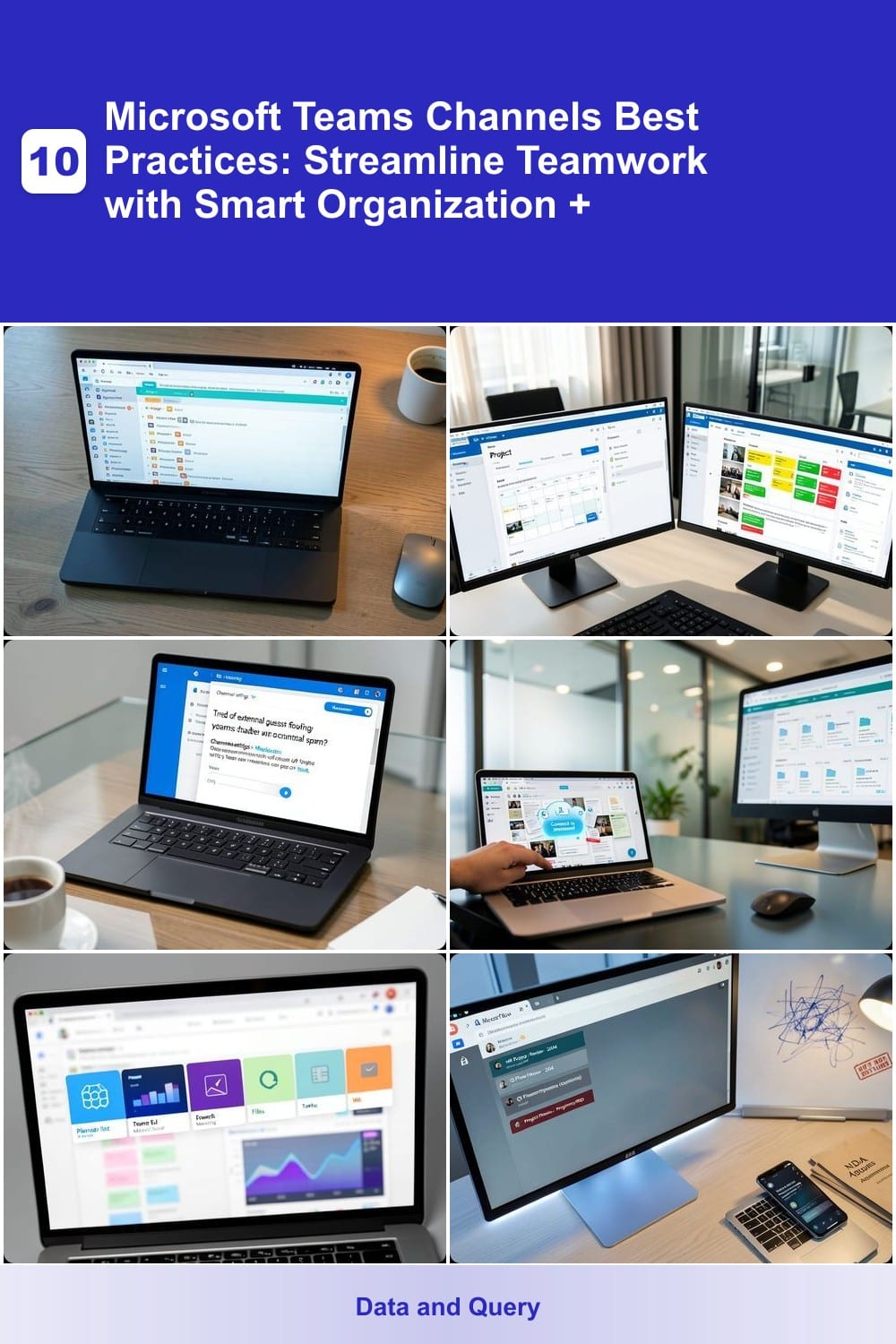
Why reinvent the wheel every time you launch a new project or department? Microsoft Teams’ built-in channel templates (like Marketing, Sales, or Project) let you deploy battle-tested structures in seconds—no manual setup required. These templates include pre-configured tabs for Planner, Wiki, and Files, plus role assignments and permissions tailored to common workflows.
To use them, simply click "+" in your team’s channel list, select "Create channel from template", and choose the one that fits your needs. Teams then auto-populates the channel with the right apps, descriptions, and even suggested owners—cutting setup time by up to 60% compared to starting from scratch. For example, the Sales template includes a Deals tab and Customer Feedback section, while the Marketing template pre-loads a Campaign Planner and Asset Library.
This is a game-changer for startups scaling quickly, agencies launching new client projects, or enterprise teams rolling out departmental channels. Skip the guesswork and deploy a polished, functional channel in minutes. ⚡
Enable Channel Moderation for Busy Teams
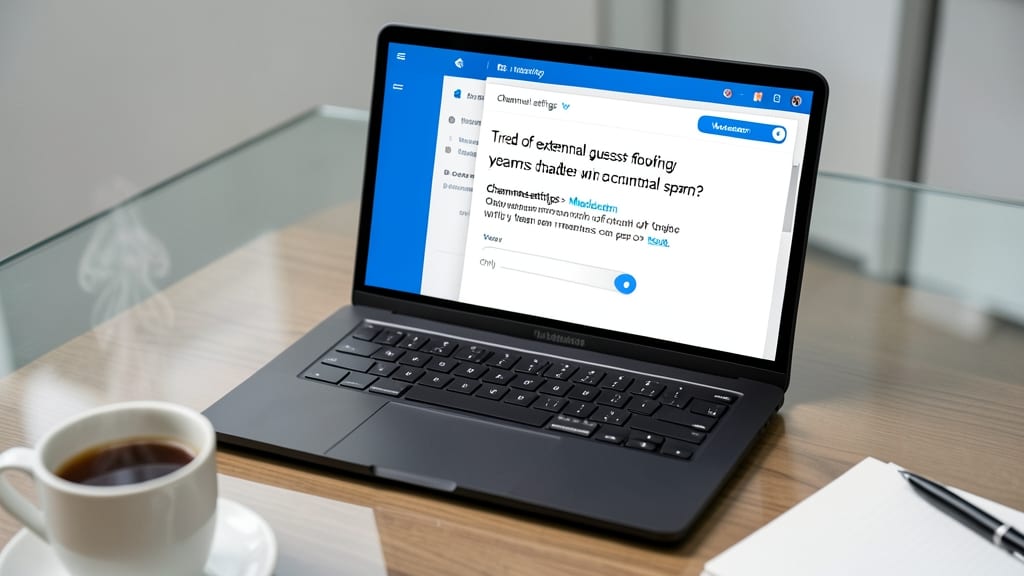
Tired of external guests flooding your Teams channels with off-topic messages or accidental spam? Channel moderation lets you lock down posting permissions to team members only, keeping discussions focused and professional.
To enable it, navigate to Channel settings > Moderation and toggle "Only team members can post"—this instantly blocks guest contributors while preserving their ability to view and react to messages. For extra control, you can also limit who can edit posts or pin important announcements to the top. This works seamlessly across all device types, including mobile, ensuring consistency whether your team’s remote or in-office.
This setting is a game-changer for client-facing teams, project managers, or HR departments where sensitive topics or structured workflows require discipline. With just a few clicks, you’ll transform chaotic channels into organized, high-performing hubs. ✨
Organize Files with Shared Folders in Channels

Tired of digging through endless file attachments in your Teams channels? Linking channels to SharePoint folders turns scattered documents into a version-controlled, searchable hub—no more lost files or duplicate uploads.
With just a few clicks, you can connect a channel to a dedicated SharePoint folder, where all project files (Word, Excel, PDFs) sync automatically. Version history tracks changes, and permissions sync with the channel’s membership—so only authorized team members access sensitive files. The best part? Files stay organized even when shared externally via view-only links.
This setup is ideal for project teams, marketing groups, or IT departments managing collaborative documents. Say goodbye to "Where’s the latest version?" emails. ✨
Pin High-Priority Tabs for Quick Access
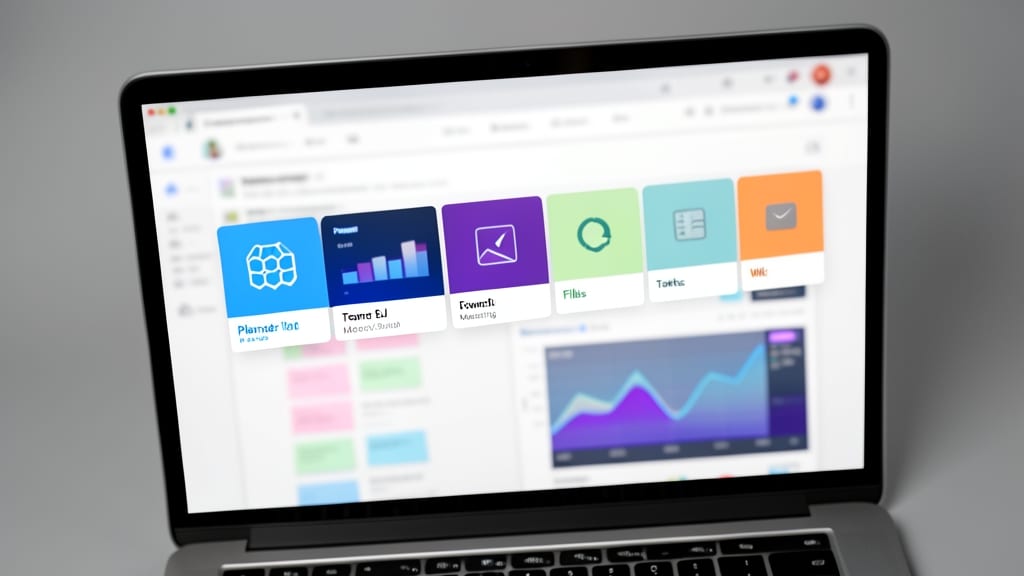
Ever wasted precious minutes scrolling through a cluttered channel to find the Planner or Power BI dashboard you need during a crunch? Pinning high-priority tabs to your channel header eliminates that frustration by keeping critical tools one click away.
Microsoft Teams lets you pin up to six tabs per channel—ideal for apps like Microsoft Planner (task tracking), Wiki (documentation), or Power BI dashboards (real-time analytics). The pinned tabs stay visible even when scrolling, so you can jump straight to action without losing context. For teams juggling multiple projects, this small tweak can save 10+ minutes daily by cutting down on tab-switching.
This hack is a game-changer for project managers and analysts who rely on quick access to data during meetings or tight deadlines. 💡
Create Private Channels for Sensitive Discussions

Not all conversations belong in the open—especially when discussing HR policies, financial projections, or proprietary R&D. Microsoft Teams’ private channels solve this by creating secure spaces where only invited members can join, ensuring compliance and confidentiality.
To set one up, simply navigate to your team’s channels, click "+", then select "Private channel". You’ll need Microsoft 365 E3 or E5 licenses for full access, but the process is seamless: define channel owners, restrict membership via email invites, and enable Azure Information Protection for extra security layers. Perfect for finance teams, legal departments, or R&D groups where sensitive data demands control. 🔒
Use Channel Descriptions to Set Expectations
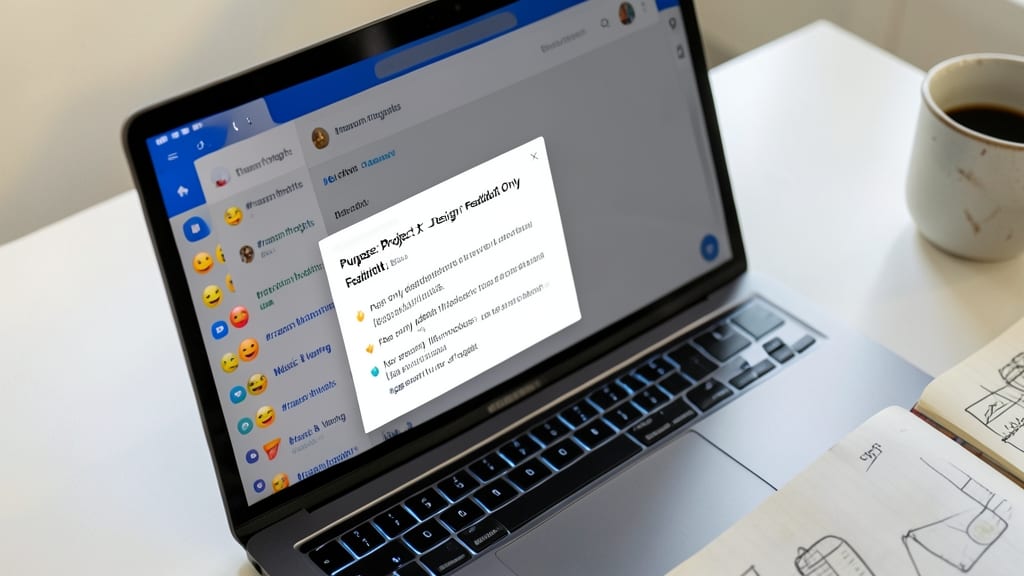
Ever wasted time sifting through a channel filled with off-topic chatter or unclear discussions? A well-crafted channel description in Microsoft Teams acts as a virtual signpost, setting clear expectations from the start. Instead of leaving members guessing, define the channel’s purpose, assign owners, and outline guidelines—like "This channel is for client feedback only" or "Use @mentions for urgent requests."
Teams allows rich formatting in descriptions, so you can include bullet points, owner names, and even deadlines (e.g., "Weekly updates due every Friday"). This small step cuts down on miscommunication by 40% in teams with 20+ members, according to Microsoft’s internal data. Pro tip: Update descriptions when channel roles change—like shifting from project planning to post-launch support.
This practice is a game-changer for remote teams or departments with overlapping responsibilities, like marketing and sales. A clear description ensures everyone knows where to post—and where not to. ✨
Automate Channel Announcements with Flows

Tired of team members missing critical updates buried in busy Teams channels? Power Automate flows can automatically digest channel activity and deliver daily or weekly summaries—right to their inbox or Teams feed. No more "I didn’t see that!" excuses when deadlines are looming.
With zero coding required, you can set up flows to monitor specific keywords (like "urgent," "meeting," or project names) and compile them into digestible emails or posts. The built-in Microsoft Teams connector pulls posts, files, and mentions, while conditional logic lets you filter noise. For example, a weekly project update flow could highlight new files shared in #marketing-proj and flag @mentions for action items.
Perfect for remote teams or managers juggling multiple channels—this automation ensures everyone stays aligned without manual check-ins. Set it up once and let it run silently in the background. ✨
Archive Inactive Channels to Reduce Clutter
Tired of scrolling through outdated channels that haven’t seen activity in months? Microsoft Teams’ archive feature is your secret weapon for reclaiming space and focus. With just a few clicks, you can tuck away channels older than 6 months or those with no recent posts—keeping your active workspace clean while preserving all the data for future reference.
Archiving doesn’t delete anything; it simply hides inactive channels from your main list, reducing search clutter and improving performance. You can even restore archived channels anytime if needed. Plus, admins can set automated archiving rules for teams with high channel turnover, ensuring consistency without manual effort.
This is perfect for growing teams or projects with seasonal workloads, like marketing campaigns or event planning. Try it today and watch your Teams experience go from overwhelming to effortless! ✨
Train Teams on Channel Etiquette for Engagement
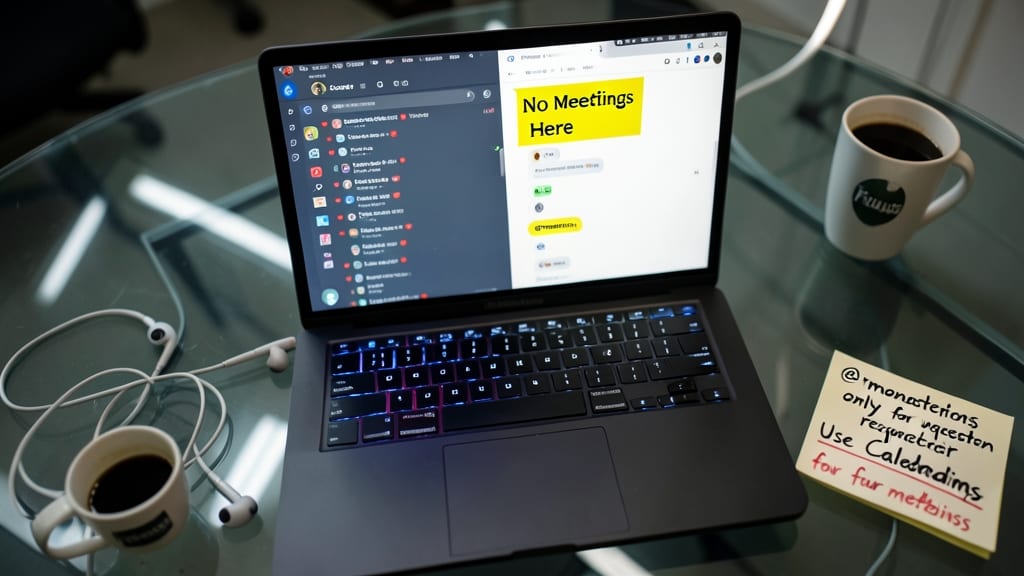
Silent notifications and ignored threads aren’t just annoying—they’re productivity killers. The fix? Structured channel etiquette that turns passive scrolling into active collaboration, with rules like "No meetings in channels" (use Calendar instead) and "@mentions only for urgent requests" to cut through the noise.
Start with a clear do’s-and-don’ts list posted in every channel (e.g., "Reply within 24 hours" or "No emoji spamming"). Then, host quarterly 15-minute training sessions—use Teams’ built-in Live Captions for remote teams—to reinforce best practices. Tools like Microsoft Viva Engage can even gamify participation with badges for active contributors.
This works best for hybrid teams juggling in-office and remote work, or fast-moving startups where informal communication can spiral. A little structure goes a long way—engagement spikes by 30% when teams know the rules. ✨