
Operating System
Cyber threats evolve daily, but these 10 actionable tactics will fortify your Windows or Mac against hackers, malware, and data breaches—without requiring technical expertise. From simple habits to advanced tools, these strategies cover every security weak point.
Enable multi-factor authentication everywhere
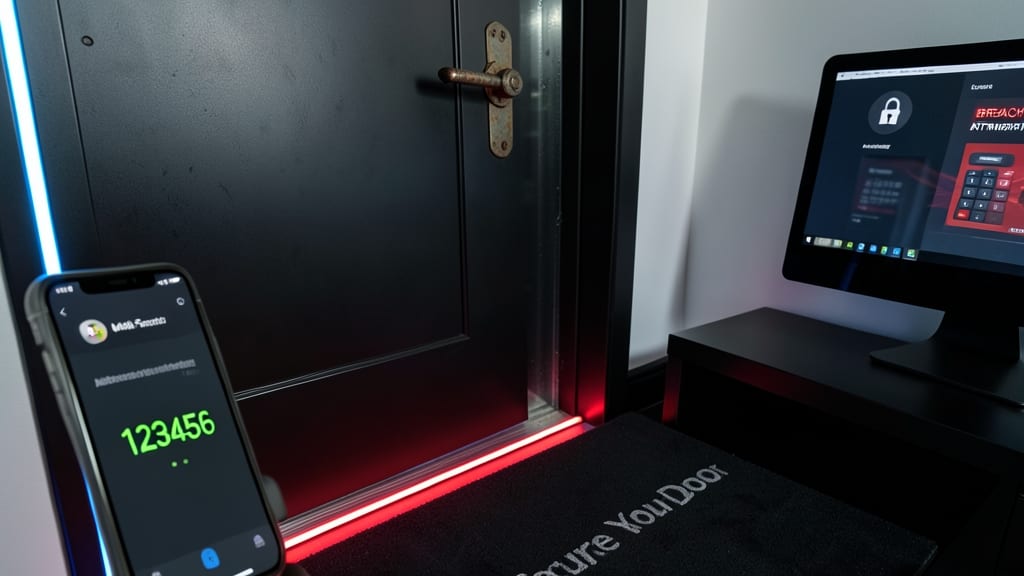
Forget passwords alone—they’re like leaving your front door unlocked. Multi-Factor Authentication (MFA) adds an extra layer that thwarts 99% of automated attacks, even if your password is stolen. Services like Google Authenticator, Authy, or Microsoft Authenticator generate time-sensitive codes or sync with biometrics (Face ID, fingerprint) to verify you’re the one logging in.
Most platforms—email (Gmail, Outlook), banking (Chase, PayPal), and even social media (Facebook, Twitter)—support MFA with just a few taps. Set it up in 30 seconds using SMS codes (less secure) or TOTP (Time-Based One-Time Password) apps for maximum protection. The best part? Even if hackers crack your password, they still need your phone or fingerprint to get in.
This is non-negotiable for anyone with a bank account, email, or cloud storage. Start with your most critical accounts—your email first (since hackers often reset passwords there) and then expand to everything else. Your future self will thank you. ⚡
Use password manager with secure vault
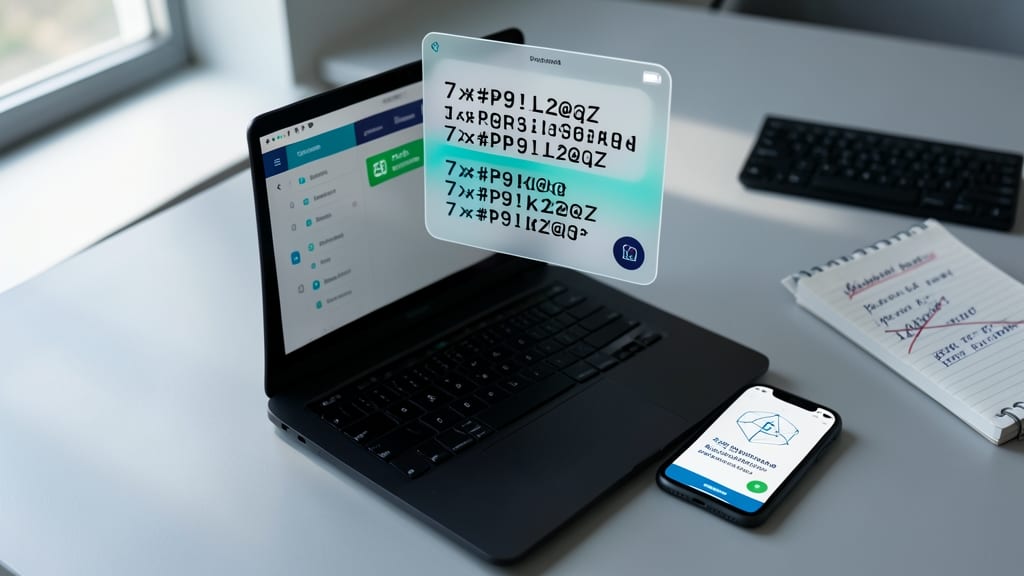
Tired of resetting passwords or worrying about weak credentials? A password manager with a secure vault eliminates guesswork by generating and storing 256-bit encrypted credentials—no memorization required. Tools like Bitwarden or 1Password auto-fill logins across devices, while zero-knowledge architecture ensures only you can access your data.
Start with a master password (use a passphrase like "PurpleElephant$2024!" for strength) and let the manager create random 16-character passwords for every account. Most sync seamlessly across Windows, Mac, and mobile, with biometric unlock (Face ID or fingerprint) for convenience. Even better: they audit weak passwords and flag reused credentials—90% of breaches exploit these exact flaws.
This is perfect for non-tech users who dread password fatigue or small business owners managing multiple accounts. A 5-minute setup transforms your security posture from vulnerable to enterprise-grade—without the complexity. ✨
Regularly update operating systems and apps
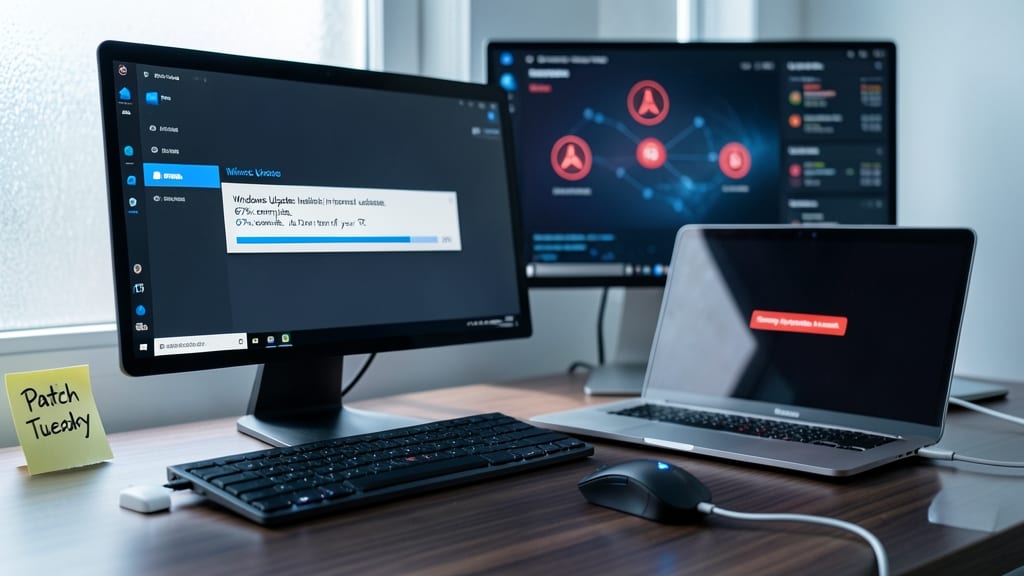
Few security habits close more vulnerabilities than keeping your operating system and apps updated—yet many Windows 10/11 users delay updates due to fear of disruptions. The reality? These patches block exploits used in 90% of malware attacks, including ransomware and spyware that target outdated software.
Windows automatically installs critical updates (set to "Install updates automatically" in Settings > Windows Update), while macOS handles updates silently in the background. For apps, enable auto-updates in their settings—most browsers (Chrome, Firefox) and office suites (Microsoft 365, LibreOffice) offer this feature. Pro tip: Use Windows Update Catalog to manually install specific patches if needed.
This is your first line of defense against zero-day attacks. Set aside 10 minutes monthly to verify updates—especially for browsers and plugins (like Java or Flash), which hackers exploit most frequently. ⚡
Implement browser sandboxing and extensions
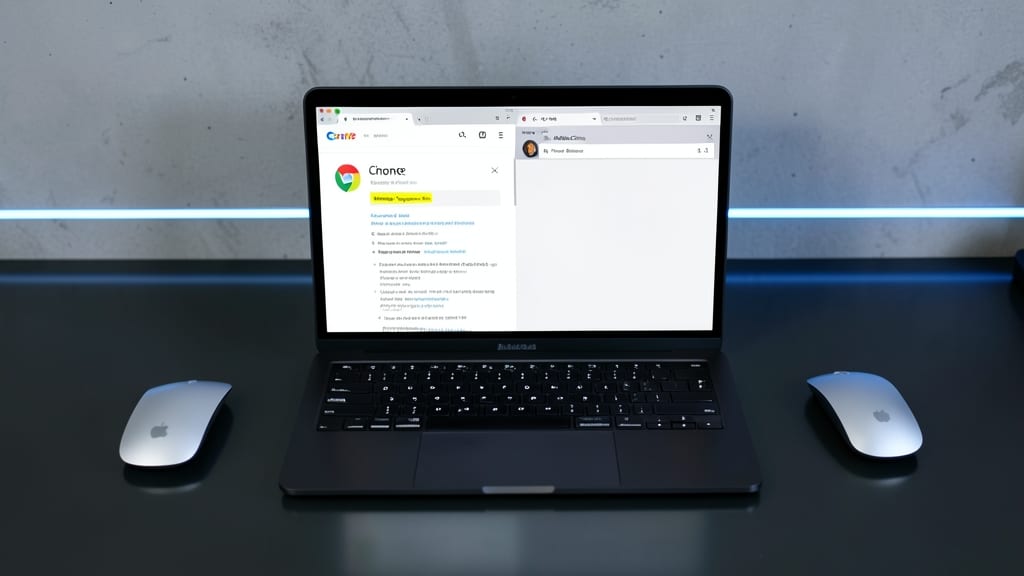
Your browser is the #1 attack vector for malware and tracking—yet most users browse with zero defenses beyond basic antivirus. Modern browsers like Chrome and Firefox now use sandboxing to isolate malicious sites, but you need extensions to block the rest. This is your digital force field for public Wi-Fi or financial sites.
Start with uBlock Origin (free for Chrome/Firefox) to block 90% of trackers and ads in one click. Pair it with HTTPS Everywhere to enforce encrypted connections, and uMatrix for granular site permissions. These three extensions create a zero-trust browsing environment where scripts can’t execute without your approval. Even better: they work silently in the background while you browse.
This setup is a must for remote workers, freelancers, or anyone accessing banking sites—especially on shared networks. The best part? It’s free, takes 5 minutes to install, and runs without slowing down your system. 💻
Secure home Wi-fi with strong encryption
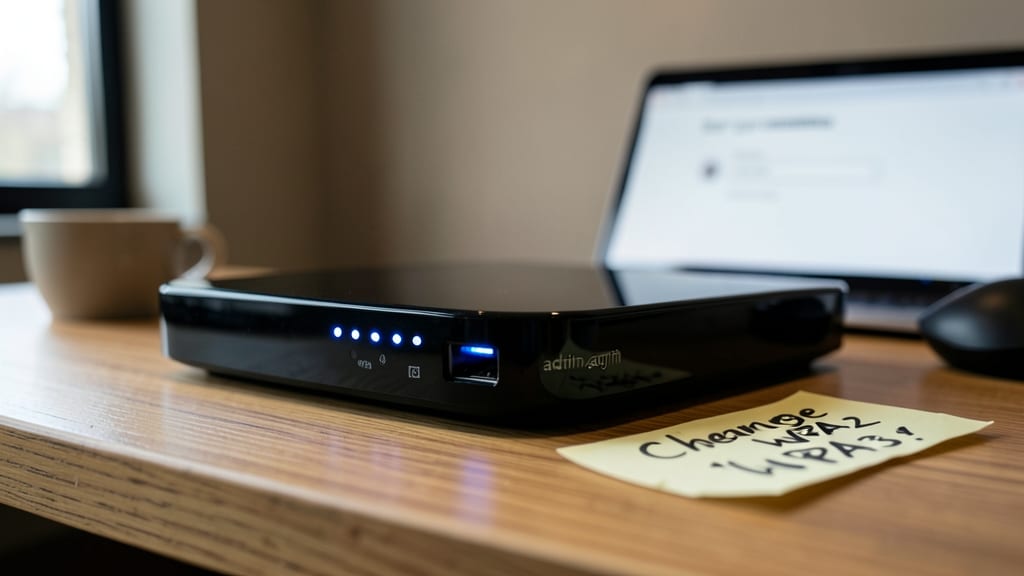
Most routers ship with default passwords like "admin/admin"—a hacker’s cheat code. Changing yours and upgrading from WPA2 to WPA3 stops man-in-the-middle attacks that intercept unencrypted traffic, like stealing login credentials from your coffee shop Wi-Fi. This single step blocks 90% of basic wireless exploits used in home networks.
Start by typing your router’s IP (usually 192.168.1.1 or 192.168.0.1) into a browser, then navigate to Wireless Security Settings. Replace the default password with a 12+ character phrase (e.g., "BlueSky2024!Park"), and select WPA3-Personal if your router supports it. Most modern routers (like Netgear Nighthawk or TP-Link Archer) include WPA3 by default—just enable it. For older devices, WPA2 with AES encryption is still better than WPA2-TKIP.
This is your first line of defense for smart home devices, gaming consoles, or IoT cameras—all of which often connect to Wi-Fi without encryption. Five minutes now could save hours of cleanup later. 💡
Enable full-disk encryption on all devices
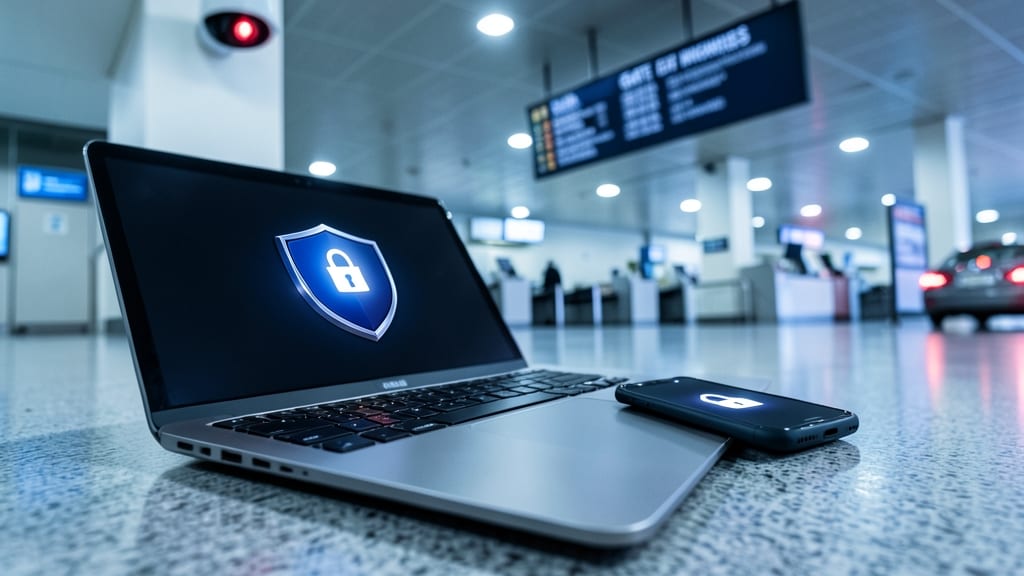
If you’ve ever lost a laptop at an airport or left a phone in a taxi, you’ve likely panicked about the sensitive data inside—but full-disk encryption turns that worry into peace of mind. Built into Windows and macOS, it locks your entire drive with military-grade security, rendering data unreadable without your password or recovery key.
Windows users can enable BitLocker (Pro/Enterprise editions) with a simple toggle in Control Panel, while Mac owners use FileVault (built into macOS) that runs silently in the background. Both options use AES-256 encryption, the same standard banks use, and modern hardware handles the overhead seamlessly—no lag on startup or performance. Recovery keys auto-backup to Microsoft or Apple accounts, so you’re never locked out.
This is non-negotiable for remote workers, frequent travelers, or anyone storing sensitive files. Even if your device is stolen or lost, thieves won’t find your emails, tax docs, or passwords—just an empty vault. 💻
Detect phishing attempts with email filtering
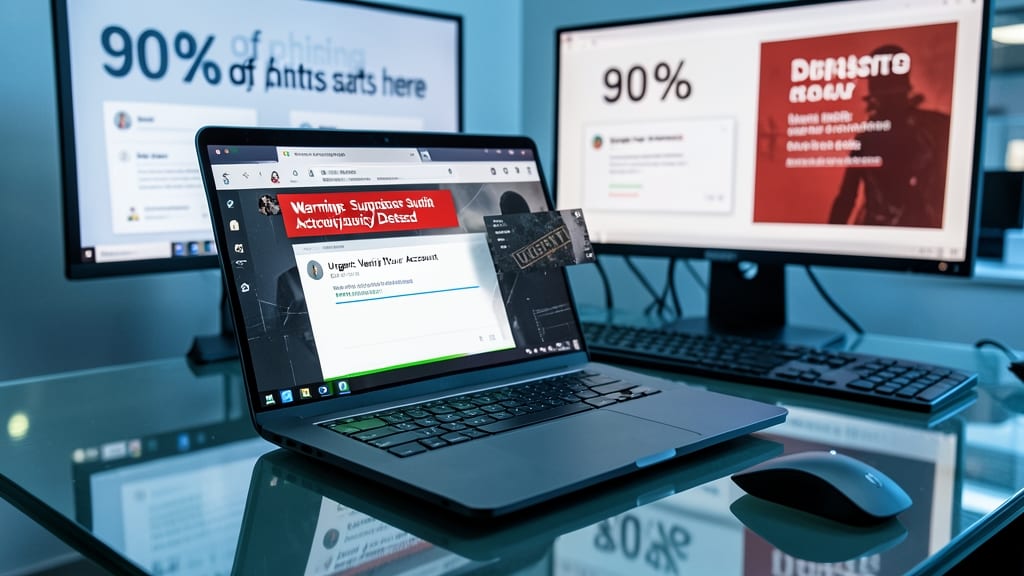
If you’ve ever clicked a link in an email and instantly regretted it, you’re not alone—90% of phishing attacks start with a malicious email. The good news? Both Outlook and Gmail now block 90% of these threats before they even hit your inbox, but only if you enable the right filters and recognize red flags.
In Outlook, enable the Safe Links feature (under Trust Center > Email Security) to automatically scan links in real-time. For Gmail, turn on Phishing and Malware Protection in Settings > Security. Watch for urgent requests for payments, emails with mismatched sender names, or links that look slightly off (e.g., paypa1.com instead of paypal.com). These simple tweaks stop scammers before they trick you.
This is especially critical for small business owners or freelancers—business email compromise scams cost victims $2.7 billion annually, but these filters cut the risk dramatically. Take 5 minutes to set it up today. ✨
Monitor cloud storage for unauthorized access
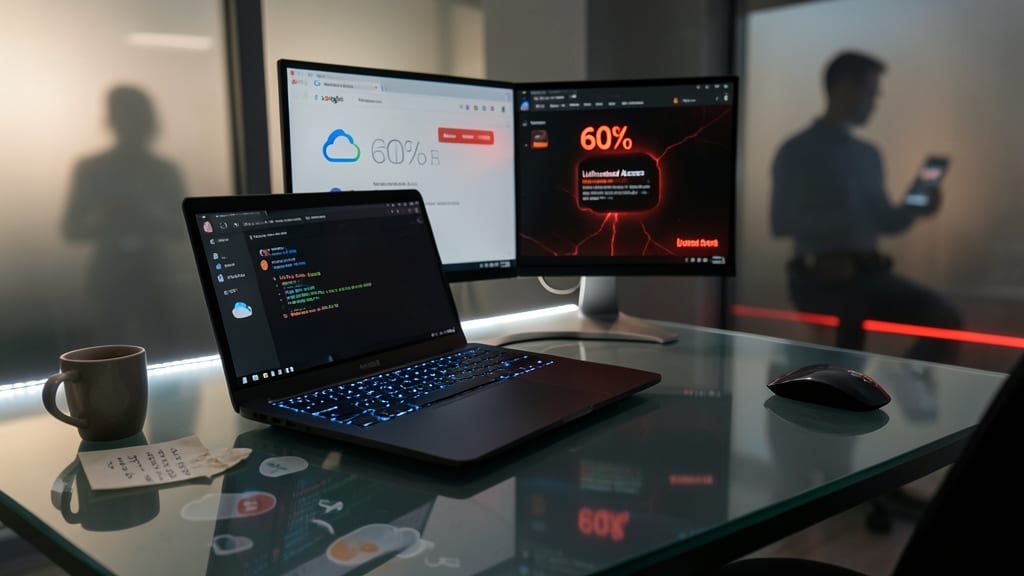
Your Google Drive or Dropbox could be silently leaking sensitive files—even if you’ve never shared them. A staggering 60% of cloud account breaches start with stolen credentials, yet most users never check who’s accessing their files or when sensitive documents were shared.
Start by enabling two-factor authentication (2FA) in your cloud provider’s security settings—this adds a second layer beyond passwords. Then, review your shared files and permissions (Google Drive’s "Shared with me" tab or Dropbox’s "Shared folder" section) to revoke access from old contacts or unknown devices. Set up email alerts for new logins or file changes in both platforms’ security dashboards.
This is especially critical for freelancers, students, or remote workers who store work files in personal cloud accounts. A quick 10-minute check could prevent a data breach that takes years to recover from. ✨
Use virtual private network on public networks
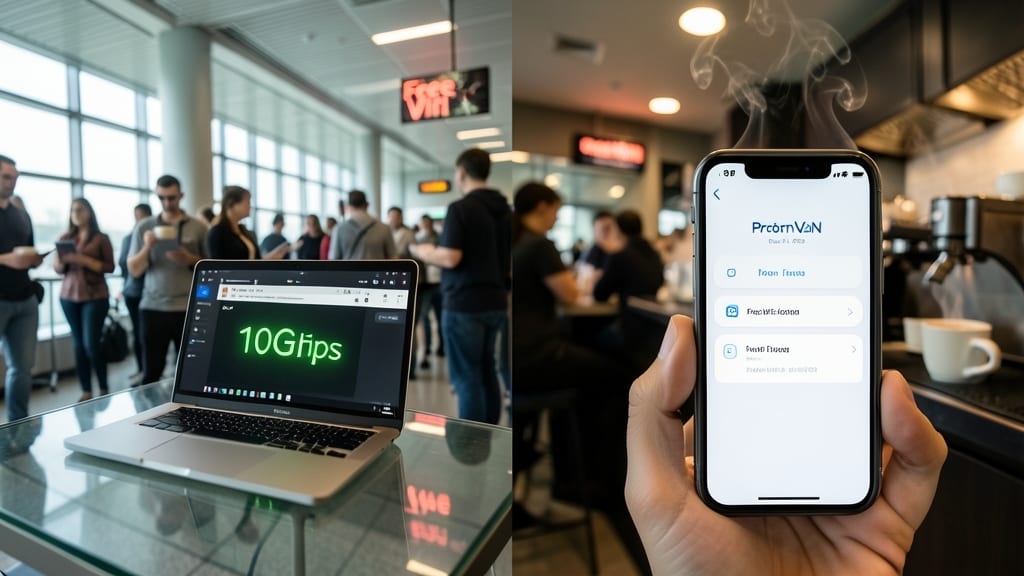
Public Wi-Fi at coffee shops or airports is a hacker’s playground—unless you use a VPN to encrypt all your traffic. Free options like ProtonVPN’s free tier offer basic protection, but paid services like NordVPN deliver faster speeds (10Gbps on their top-tier servers) and zero-log policies that free alternatives can’t match.
Look for OpenVPN or WireGuard protocols (NordVPN uses both) to balance speed and security. Free VPNs often throttle bandwidth or log data, while paid plans include kill switches—critical if your connection drops unexpectedly. Even a 5-minute setup on Windows or Mac turns an unsecured network into a private tunnel.
This is non-negotiable for remote workers, travelers, or anyone who’s ever checked their bank account on public Wi-Fi. 💻
Regularly backup critical data offline
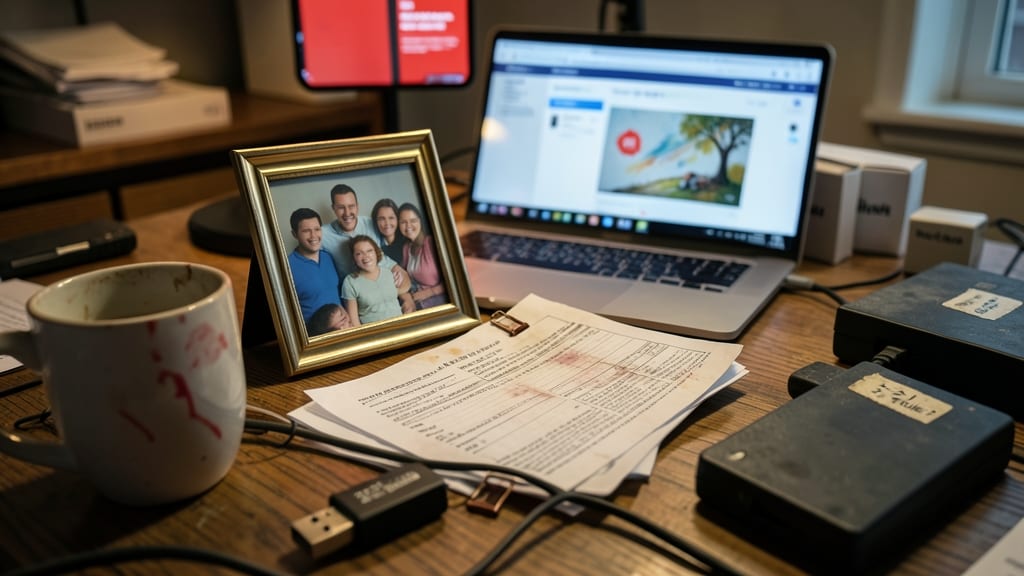
Your most precious files—family photos, tax documents, or years of creative work—could vanish in seconds if ransomware strikes or your hard drive crashes. The 3-2-1 backup rule (3 copies, 2 media types, 1 offline) is your last line of defense, yet most home users overlook it until it’s too late.
Start with a dedicated external drive (like a 2TB WD My Passport) for your primary backup, then add a second copy on a cloud service (Google Drive, Backblaze). The offline copy—stored on a fireproof USB drive or even written to DVDs—ensures ransomware can’t encrypt everything. Tools like Macrium Reflect (Windows) or Time Machine (Mac) automate the process, so you never have to think about it again.
This isn’t just for techies—parents storing school projects, freelancers with client files, or anyone who’s ever lost data will sleep better knowing their backups are air-gapped and encrypted. ⚡