
Coding
Excel’s math and trigonometric functions unlock powerful data analysis, engineering calculations, and financial modeling capabilities. Whether you’re crunching numbers for a project or automating complex formulas, these 10 essential functions will transform how you work with quantitative data in spreadsheets.
SUM Function for Basic Arithmetic Operations
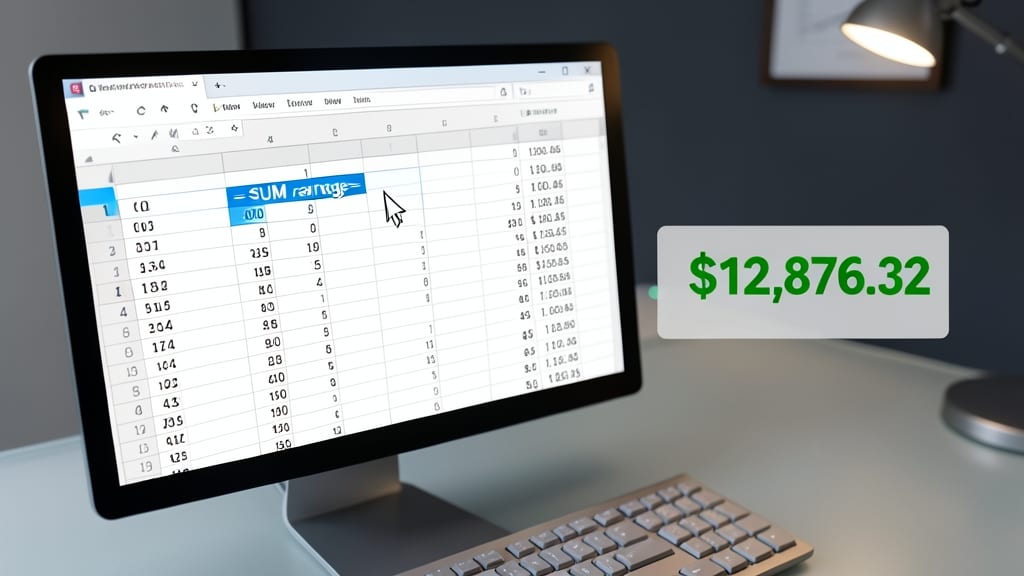
Need to add up columns of numbers faster than you can blink? The SUM function is Excel’s workhorse—your go-to tool for instantly calculating totals across rows, columns, or entire ranges with just a few keystrokes.
Simply type =SUM(range), and Excel handles the rest. Whether you’re tallying monthly sales figures (e.g., =SUM(B2:B100)), tracking inventory counts, or generating financial reports, this function eliminates manual addition errors. It even ignores empty cells and text, ensuring accuracy. For dynamic ranges, use =SUM(A1:A100), and Excel will adjust automatically as your data grows.
Perfect for accountants, small business owners, or anyone managing budgets—this is the function that keeps your spreadsheets clean, your calculations precise, and your workflows efficient. 💻
AVERAGE Function for Statistical Analysis
Struggling to turn raw numbers into actionable insights? The AVERAGE function in Excel is your statistical powerhouse—calculating the mean value across datasets with just a few clicks. Unlike simple sums, it reveals the central tendency of your data, making it ideal for everything from quality control metrics to academic research trends.
With syntax like =AVERAGE(range), you can instantly analyze performance metrics (e.g., =AVERAGE(B2:B100) for monthly sales averages) or benchmark test scores. It even ignores empty cells and text, ensuring accurate results. For deeper insights, combine it with STDEV or MEDIAN to compare variability in your data.
Perfect for data analysts, researchers, or small business owners—this function turns spreadsheets into decision-making tools. Whether you're tracking KPIs or grading exams, the AVERAGE function is your shortcut to clarity. 💡
SIN and COS Functions for Engineering Calculations

Need to model a bridge’s load distribution or simulate a robot’s arm movement? The SIN and COS functions in Excel are your secret weapon—converting angles into precise trigonometric ratios for real-world physics and engineering problems.
Use =SIN(angleinradians) to calculate vertical components (e.g., force vectors in a truss structure) and =COS(angleinradians) for horizontal components. Pair them with RADIANS() to convert degrees (like 30°) into the required radians format. For example, =COS(RADIANS(45)) returns 0.7071—critical for calculating diagonal forces in structural analysis.
Architects and mechanical engineers rely on these functions to validate designs before physical prototypes are built. Even hobbyist modelers use them to refine 3D prints or game physics. ⚡
PI Function for Circular Calculations

Need to calculate the area of a circular warehouse floor or the circumference of a pipe fitting? The PI() function in Excel delivers the precise value of π (3.14159265358979) for your circular calculations—no manual typing required.
Simply type =PI() in any cell, and Excel returns π to 15 decimal places, ready for formulas like =PI()radius² (area) or =2PI()*radius (circumference). This function is a game-changer for engineering blueprints, logistics planning, or circular design projects where precision matters.
Perfect for architects, manufacturing teams, or logistics coordinators—anyone who needs reliable circular measurements without approximation errors. ✨
ROUND Function for Data Precision
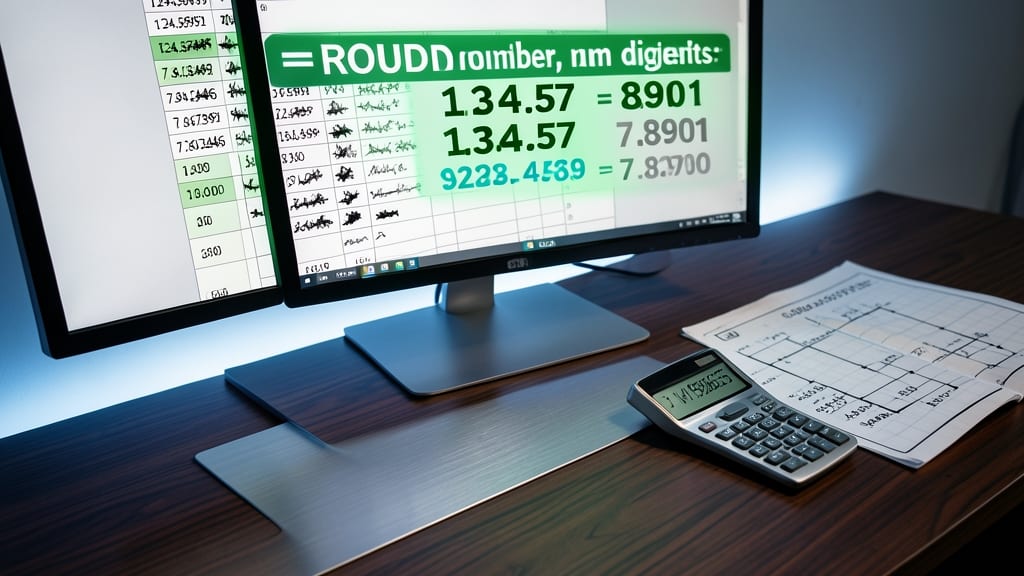
Tired of messy decimal places cluttering your financial reports or scientific datasets? The ROUND function is your precision control tool, letting you specify exactly how many decimal places to display—whether it’s 2 for currency, 4 for engineering specs, or 0 for whole numbers.
With syntax like =ROUND(number, num_digits), you can instantly clean up values while preserving their underlying accuracy. Need to standardize a dashboard? Rounding salary data to 2 decimals or temperature readings to 1 decimal keeps everything uniform. Even better, it works with negative numbers and handles edge cases like ROUNDDOWN or ROUNDUP for strict compliance needs.
Accountants, engineers, and data analysts will love this for consistent reporting, while marketers can use it to simplify user-facing dashboards. No more eyeball-straining decimals—just clean, professional numbers every time. ✨
POWER Function for Exponential Calculations

Tired of manually calculating compound interest or modeling exponential growth? The POWER function in Excel does the heavy lifting for you—raising numbers to any exponent with a simple formula.
With syntax like =POWER(base, exponent), you can model everything from population growth (e.g., =POWER(1.05, 10) for 5% annual growth over 10 years) to chemical reaction rates (e.g., =POWER(2, 3) for 2³ = 8). It even handles fractional exponents for roots, like =POWER(64, 1/3) for the cube root of 64.
Perfect for financial analysts, scientists, or engineers—this function turns complex calculations into a single click. ⚡
RADIANS Function for Angle Conversions

Stuck trying to align your trigonometric calculations with navigation systems, astronomy software, or game engines? The RADIANS function in Excel is your bridge between degrees and radians—two units that can’t mix in most math operations without errors.
Simply enter =RADIANS(angleindegrees), and Excel instantly converts values like 90° to 1.5708 radians (π/2). This is non-negotiable for SIN, COS, or TAN functions, which expect radians by default. Pair it with DEGREES() for two-way conversions, making it perfect for physics simulations or 3D modeling where unit consistency matters.
Engineers and developers will love how it eliminates manual conversions—just plug in your angle, and let Excel handle the rest. For anyone working with circular motion, orbital mechanics, or pixel-perfect rotations, this function saves hours of recalculations. ✨
LOG Function for Logarithmic Scaling

Ever struggled to visualize data that jumps from 1 to 10,000 in a single column? The LOG function in Excel transforms exponential growth into manageable, linear trends—perfect for acoustics (decibels), earthquake scales (Richter), or algorithmic complexity (Big-O notation).
With syntax like =LOG(number, [base]), you can compress massive ranges: LOG(1000, 10) returns 3, making it easy to compare orders of magnitude. Omit the base for natural logarithms (base e), or use base 2 for binary systems. This function is the secret weapon for data scientists plotting exponential decay or engineers analyzing signal strength.
Seismologists and sound engineers rely on it to convert raw measurements into intuitive scales. For anyone working with non-linear data, LOG turns chaos into clarity. ⚡
ATAN Function for Inverse Trigonometry

Need to find the angle in a right triangle but only have the opposite and adjacent sides? The ATAN function is your go-to tool for inverse trigonometry, returning angles in radians (convert with RADIANS if degrees are needed). It’s the backbone of precise calculations in fields like robotics pathfinding or game physics engines where even a 0.1° error can derail accuracy.
Syntax is simple: =ATAN(opposite/adjacent). For example, =ATAN(1/1) returns π/4 radians (45°), proving its reliability for geometric layouts or trajectory calculations. Pair it with RADIANS or DEGREES to match your project’s unit system seamlessly.
Game developers and surveyors rely on ATAN to calculate slopes, rotations, or terrain angles—turning raw measurements into actionable data. For anyone working with spatial relationships, this function bridges the gap between numbers and real-world precision. ✨
IF with Math Logic for Conditional Calculations

Tired of manually adjusting formulas when your data crosses thresholds? The IF function merges logic with math to automate decisions based on numeric conditions—like grading student scores or triggering alerts when inventory hits reorder points.
With syntax like =IF(logicaltest, valueiftrue, valueif_false), you can nest it with other functions (e.g., IF(SUM(A1:A10)>100, "High", "Low")) for dynamic pricing, performance evaluations, or even multi-condition logic using IFS (Excel 2019+). It’s the secret weapon for turning raw numbers into actionable insights.
Perfect for educators, inventory managers, or e-commerce teams who need real-time decision-making without manual checks. ✨