
Coding

Struggling with messy data in Excel? These 10 essential text functions will transform raw text into clean, organized information with ease. Learn how to extract, format, and manipulate text like a data professional—complete with practical examples for real-world use.
Concatenate Function for Combining Text Fields

Tired of manually typing full names or addresses by combining separate columns? The CONCATENATE function merges text from multiple cells into one with a single formula—no copy-pasting required. Simply enter =CONCATENATE(A2, " ", B2) to combine first names (A2) and last names (B2) with a space in between, creating professional full names instantly.
Works seamlessly across all Excel versions, including Office 365, and handles up to 30 text items at once. Need a comma separator for addresses? Just add =CONCATENATE(A2, ", ", B2, ", ", C2) to merge street, city, and state. The function even ignores empty cells automatically, making it perfect for messy datasets.
Small business owners, HR teams, and anyone managing contact lists will save hours of manual work. Try it today for cleaner, more professional data—no VBA or advanced skills needed! ⚡
Text to Columns for Splitting Delimited Data
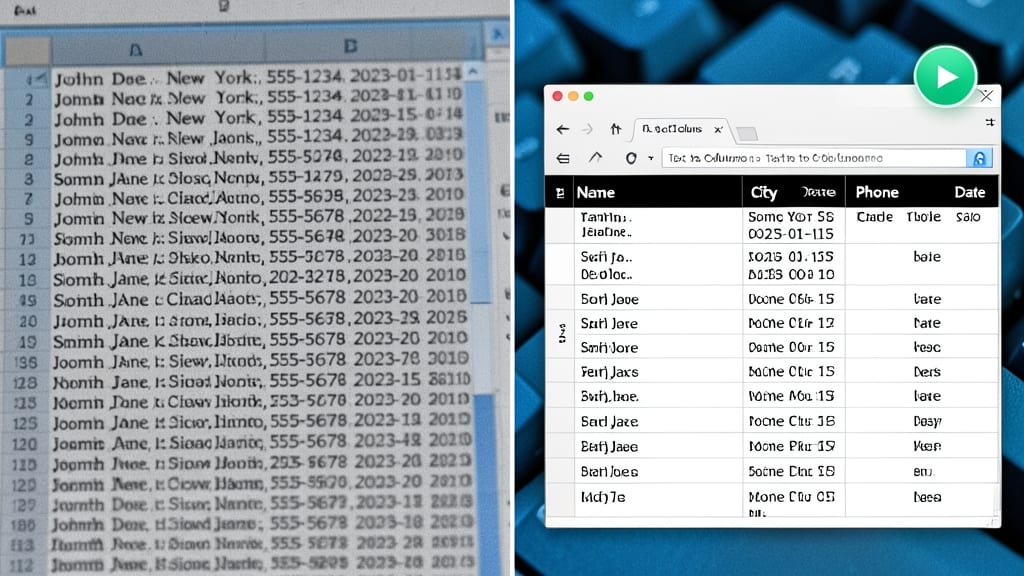
Stuck with a single cell packed with comma-separated values or a tab-delimited dump from an external system? The Text to Columns tool is your lifesaver—no formulas required. Instead of manually splitting data, this built-in wizard handles the heavy lifting in seconds, converting messy text into neatly organized columns with just a few clicks.
Access it via Data > Text to Columns, then choose between delimited (for commas, tabs, or semicolons) or fixed-width layouts. The preview pane lets you test your settings before applying changes, making it perfect for CSV imports, survey responses, or log files. Works in all Excel versions, including older ones like Excel 2010, so you won’t need upgrades to clean up legacy data.
Marketers importing survey data, developers parsing log files, or small business owners merging spreadsheets will save hours of manual work—just point, click, and transform raw text into structured columns instantly. ⚡
LEFT and RIGHT Functions for Extracting Partial Text

Need to pull out just the first few characters from a messy dataset? The LEFT and RIGHT functions are your secret weapon for extracting partial text—like pulling ZIP codes from addresses or product codes from longer descriptions—without writing a single line of VBA.
Use LEFT(text, numchars) to grab characters from the start (e.g., =LEFT(A2,5) extracts the first 5 digits of a ZIP code) or RIGHT(text, numchars) for the end (e.g., =RIGHT(A2,4) pulls the last 4 characters of a product ID). Both work in Excel 2003 and later, making them perfect for legacy spreadsheets or shared files.
Small business owners and data analysts will love these for quick validation—like checking if product codes match expected formats—while avoiding errors from complex array formulas. ✨
MID Function for Extracting Middle Text Segments

Need to pull out that serial number buried in a long product description or extract a model variant from a part code? The MID function is your precision tool for grabbing text from the middle of any string—no more cutting and pasting manually.
With three key parameters—the cell reference, starting position, and character length—you can pinpoint exactly what you need. For example, =MID(A2, 12, 5) extracts 5 characters starting at position 12 in cell A2. It’s perfect for cleaning up inventory lists, parsing log files, or standardizing product codes across datasets.
This function shines when you’re working with fixed-length segments in messy data—ideal for inventory managers, data analysts, or anyone wrestling with inconsistent text formats. ⚡
SUBSTITUTE Function for Replacing Text Patterns
Tired of manually correcting typos or standardizing inconsistent text across hundreds of rows? The SUBSTITUTE function is your secret weapon for batch text replacements—no copy-pasting required. Whether you're fixing abbreviations, removing placeholders, or cleaning up user-generated data, this function handles it all with a simple formula.
Use =SUBSTITUTE(text, oldtext, newtext, [instancenum]) to replace every occurrence of "Inc." with "Incorporated", swap "&" for "and", or even strip out "N/A" placeholders. The optional instancenum lets you replace only the first, second, or nth occurrence—perfect for partial fixes. Works in Excel 2007 and later, including Office 365.
Small business owners and data analysts will love this for legacy dataset cleanup, while marketers can standardize product descriptions. Try it today—your spreadsheets (and sanity) will thank you. ✨
TRIM Function for Removing Extra Spaces

When importing data from PDFs, web scrapes, or manual entries, extra spaces can turn clean datasets into chaotic messes. The TRIM function is your secret weapon—it instantly removes leading, trailing, and multiple internal spaces, ensuring your data stays polished and error-free.
Simply enter =TRIM(A1) to clean up text in cell A1. It handles everything from invisible spaces (like those copied from websites) to excessive gaps between words, making it perfect for merging data before using CONCATENATE or TEXTJOIN. Works in all Excel versions, including older ones like Excel 2010.
Small business owners, data analysts, and anyone dealing with unstructured text will love how TRIM saves time on manual formatting. ⚡
UPPER, LOWER, and PROPER Functions for Text Formatting

Tired of inconsistent text case ruining your reports or labels? The UPPER, LOWER, and PROPER functions instantly standardize text to match your needs—whether it’s all-caps for headers, lowercase for filenames, or title case for names.
Use UPPER(A2) to convert "john doe" to "JOHN DOE" for compliance reports, LOWER(B2) to standardize "Email.txt" to "email.txt" for file management, or PROPER(C2) to automatically format "michael jackson" as "Michael Jackson." These functions work across all Excel versions, including Office 365, and require zero config—just paste the formula and let Excel handle the rest.
Perfect for small business owners formatting invoices, HR teams standardizing employee records, or anyone exporting data to systems with strict formatting rules. Your spreadsheets will look polished and professional in seconds! ✨
FIND and SEARCH Functions for Locating Text

When you need to pinpoint exactly where specific text hides inside a cell—whether it’s a log error, a hidden code, or a validation flag—Excel’s FIND and SEARCH functions become your detective tools. Unlike previous functions that extract or modify text, these two return the position of your target string, letting you slice data precisely or flag anomalies.
The key difference? FIND is case-sensitive (so "Error" ≠ "error"), while SEARCH ignores case—perfect for hunting typos or inconsistent formatting. Both use syntax like =FIND("text", cell) or =SEARCH("text", cell), returning the starting position (e.g., 5 means the text starts at the 5th character). Combine them with LEFT, RIGHT, or MID to extract only the text you need, or use them to validate data (e.g., check if "Invalid" appears in a status column).
Accountants auditing transactions, developers parsing logs, or anyone cleaning up messy datasets will find these functions indispensable for precision validation. They’re also great for extracting substrings dynamically—like pulling error codes from long system messages. 💡
LEN Function for Counting Characters in Cells

Need to ensure your data meets strict length requirements? The LEN function is your secret weapon for validating text fields—whether you're enforcing 5-digit ZIP codes, 8-character passwords, or 200-character product descriptions. It counts every character in a cell, including spaces, giving you precise control over data consistency.
Simply type =LEN(A1) to count characters in cell A1, then compare the result to your threshold using IF statements (e.g., =IF(LEN(A1)>200,"Too long","OK")). This function shines when auditing datasets, cleaning up user inputs, or enforcing compliance rules—no manual counting required.
Perfect for data analysts, HR teams managing employee records, or anyone dealing with structured text fields. ⚡
TEXTJOIN Function for Advanced Text Combination

Tired of messy concatenation results where empty cells or extra spaces ruin your merged data? The TEXTJOIN function in Office 365 is your game-changer—it combines text while ignoring blanks and lets you control delimiters like commas or semicolons.
With TEXTJOIN, you can merge dynamic datasets (e.g., combining first names with a comma delimiter) without errors from empty cells. The syntax is simple: =TEXTJOIN(delimiter, ignore_empty, range1, [range2], ...). For example, =TEXTJOIN(", ", TRUE, A2:A10) combines all non-empty cells in column A with a space after each comma. It’s perfect for generating lists, cleaning up survey responses, or merging variable-length data.
This function is a must for Office 365 users working with inconsistent datasets—no more manual checks for blanks or nested IF statements. ⚡